33 — 全息 Shader
介绍
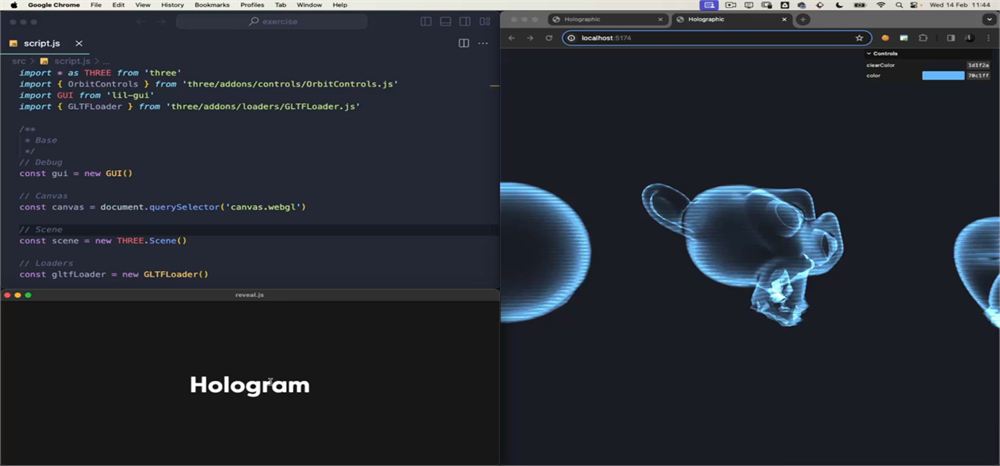
这节课我们会学习如何创建经常用在科幻电影(比如《星球大战》)里的全息材质:
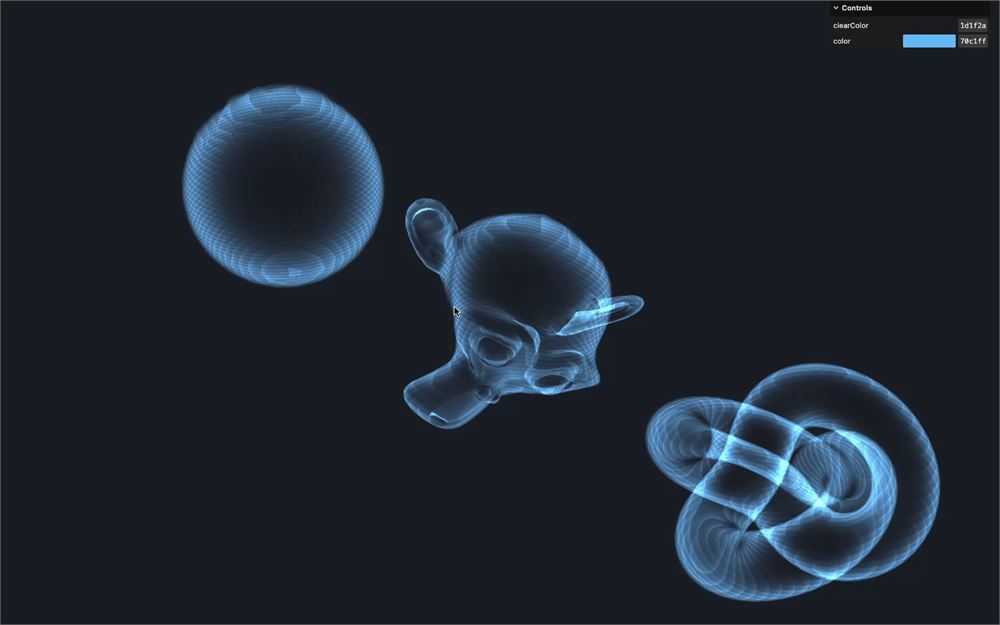
大部分效果是在 fragment shader 里完成的,但 vertex shader 里也有一个毛刺(glitch)效果,让顶点像波浪一样有点失控。
我们会相当多地依赖 Fresnel 效应,它让我们能根据面与相机角度之间的夹角产生视觉变化。稍后会详细讲。
设置
起始代码已经包含以下内容:
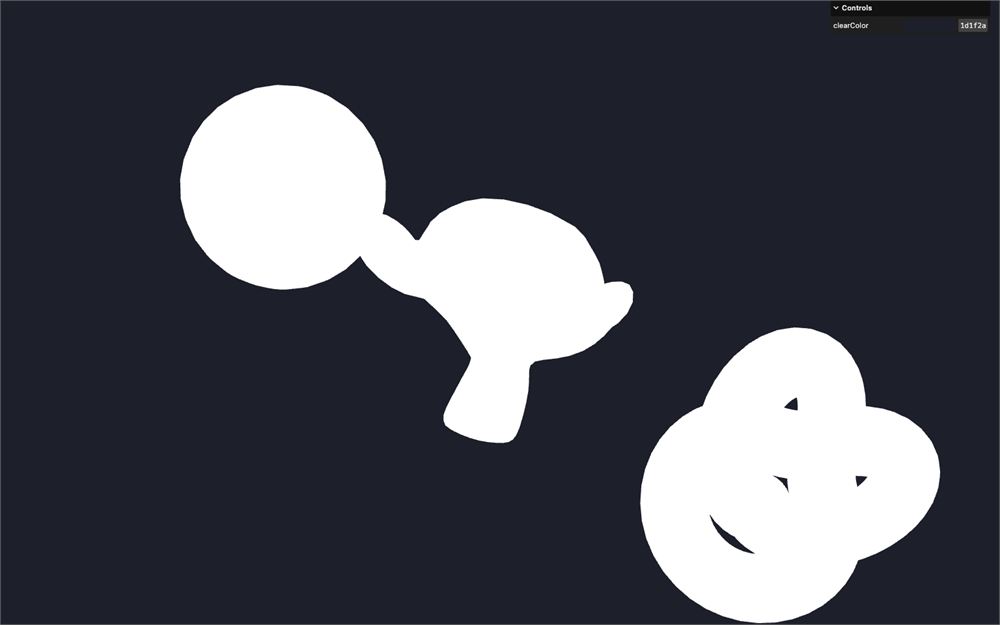
- 3 个旋转的物体:一个球体、Suzanne 和一个环面结
- 为这 3 个物体共用同一个 MeshBasicMaterial 实例
- 一个
lil-gui实例,如果你想改变背景色,clearColor已经设置好了 - 一个
Clock实例,我们在tick函数里从中获取elapsedTime vite-plugin-glsl依赖,用于处理 GLSL 文件OrbitControls,用来围绕旋转
材质
让我们先把 MeshBasicMaterial 改成 ShaderMaterial:
const material = new THREE.ShaderMaterial()
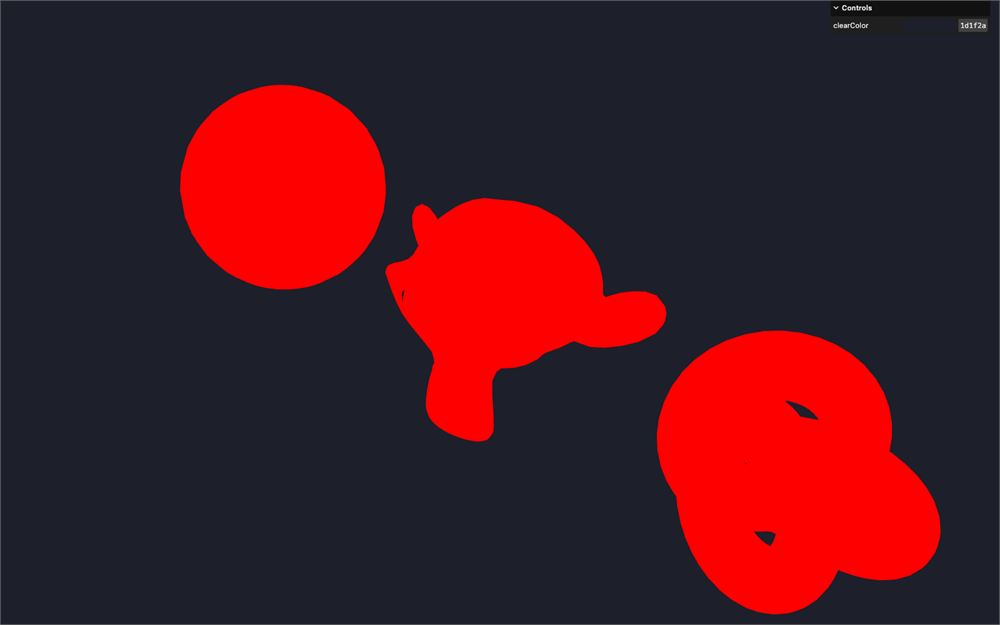
物体变成红色,是因为 Three.js 提供的默认 vertex 和 fragment shader。
创建 shader 文件
在 src/ 里创建一个 shaders/ 文件夹,并在那个 src/shaders/ 文件夹里创建一个 holographic/ 文件夹。
在 src/shaders/holographic/ 文件夹里,创建一个 vertex.glsl 文件,并加入定位顶点所需的最小程序:
void main()
{
    // Position
    vec4 modelPosition = modelMatrix * vec4(position, 1.0);

    // Final position
    gl_Position = projectionMatrix * viewMatrix * modelPosition;
}
我们把 modelPosition 单独拆出来了,因为我们需要在应用其他矩阵之前对它进行处理。很快就会更明白。
仍然在 src/shaders/holographic/ 文件夹里,创建一个 fragment.glsl 文件,并加入把片元涂成黄色所需的最小程序:
void main()
{
    // Final color
    gl_FragColor = vec4(1.0, 1.0, 0.0, 1.0);
}
我们会在那个 fragment shader 的 main() 函数最末尾添加两个 #include:
void main()
{
    // Final color
    gl_FragColor = vec4(1.0, 1.0, 0.0, 1.0);
    #include <tonemapping_fragment>
    #include <colorspace_fragment>
}
那些是给 Three.js 的指令,它会注入相应的代码块来处理色调映射(tone mapping)和色彩空间(color spacing),就像前面课程里解释的那样。
使用 shader 文件
回到 src/script.js,把两个 shader 分别导入为 holographicVertexShader 和 holographicFragmentShader:
import holographicVertexShader from './shaders/holographic/vertex.glsl'
import holographicFragmentShader from './shaders/holographic/fragment.glsl'
用 vertexShader 和 fragmentShader 属性把这些 shader 传给 ShaderMaterial:
const material = new THREE.ShaderMaterial({
    vertexShader: holographicVertexShader,
    fragmentShader: holographicFragmentShader
})
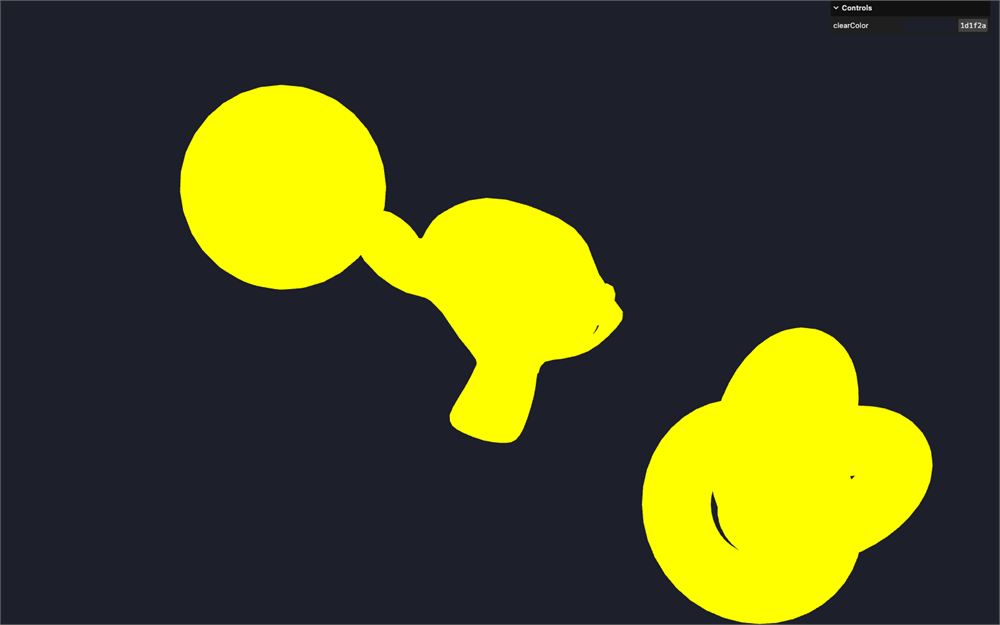
条纹
让我们从 fragment shader 开始。
图案
我们要画一个条纹图案。我们想创建一些随着向上而不断重复的小渐变。
这个技术和 Shader Patterns 那节课里最早的一个图案非常相似:
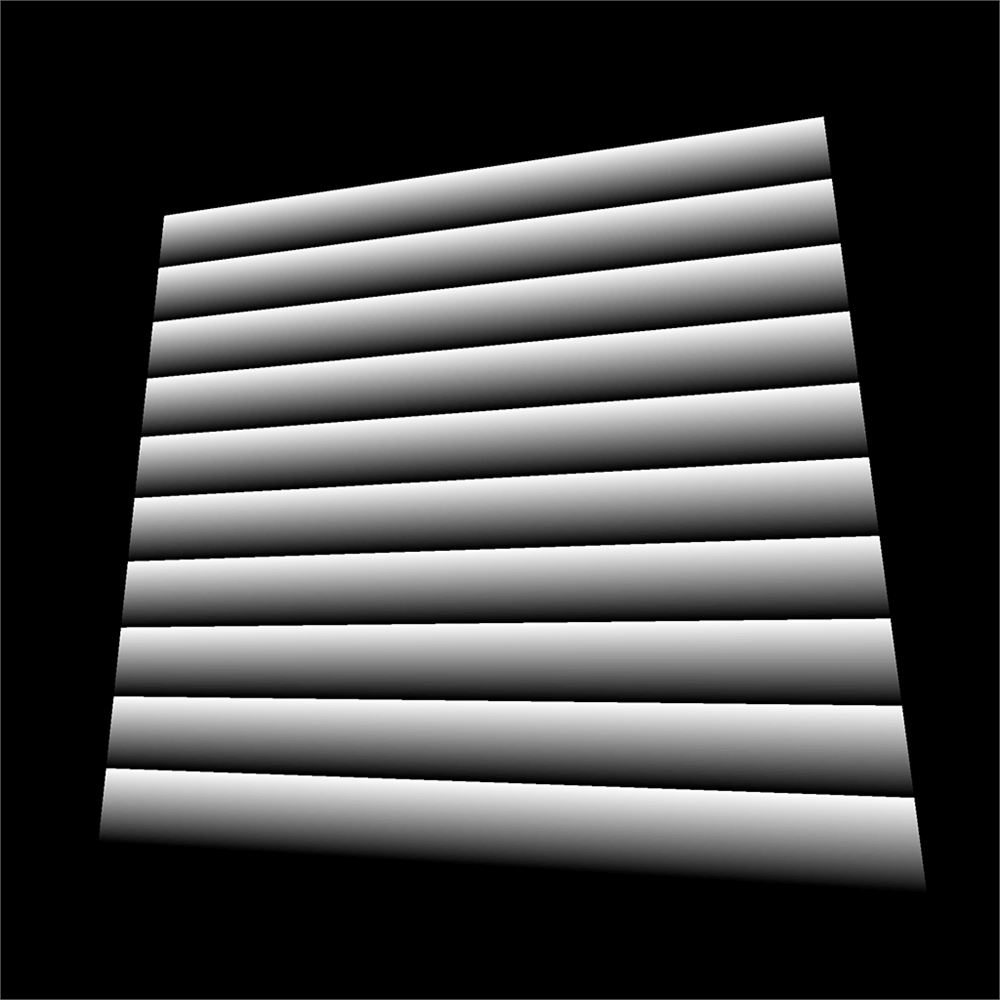
但我们不依赖 UV 坐标,而是使用 modelPosition。
在 vertex.glsl 里,创建一个 vec3 vPosition varying,并把 modelPosition 赋值给它:
varying vec3 vPosition;

void main()
{
    // Position
    vec4 modelPosition = modelMatrix * vec4(position, 1.0);

    // Final position
    gl_Position = projectionMatrix * viewMatrix * modelPosition;

    // Varyings
    vPosition = modelPosition.xyz;
}
注意 vPosition 是 vec3,而 modelPosition 是 vec4,这就是为什么我们只提取 xyz(称为 swizzling)。
在 fragment.glsl 里,取回 vPosition 并把它传给 gl_FragColor,确保它正常工作:
varying vec3 vPosition;

void main()
{
    // Final color
    gl_FragColor = vec4(vPosition, 1.0);
    // ...
}
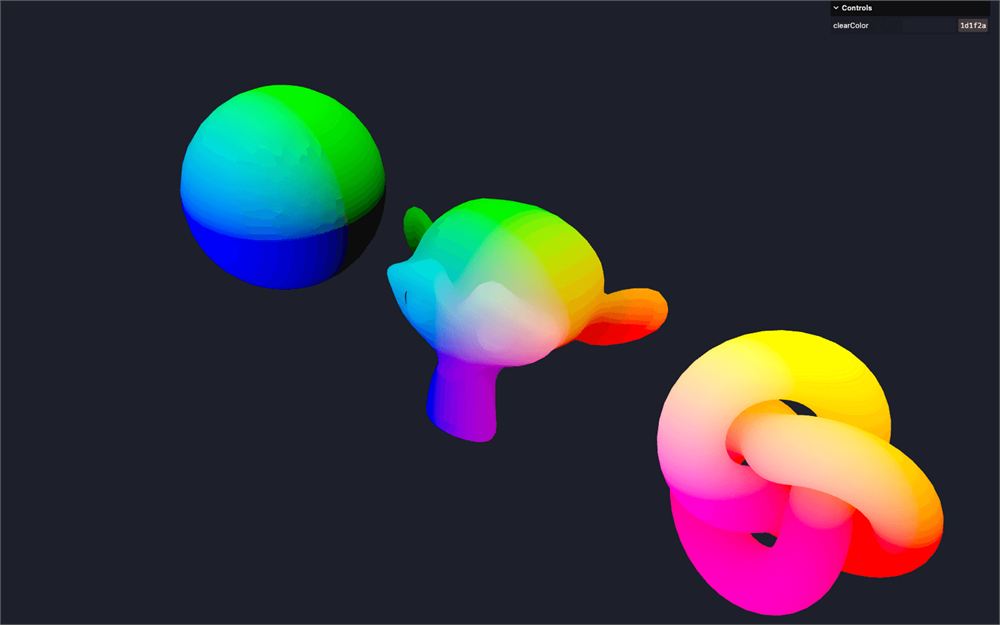
创建一个 float stripes 变量并赋值为 vPosition.y。然后把它传给 gl_FragColor 的前 3 个值:
void main()
{
    // Stripes
    float stripes = vPosition.y;

    // Final color
    gl_FragColor = vec4(stripes, stripes, stripes, 1.0);
    // ...
}
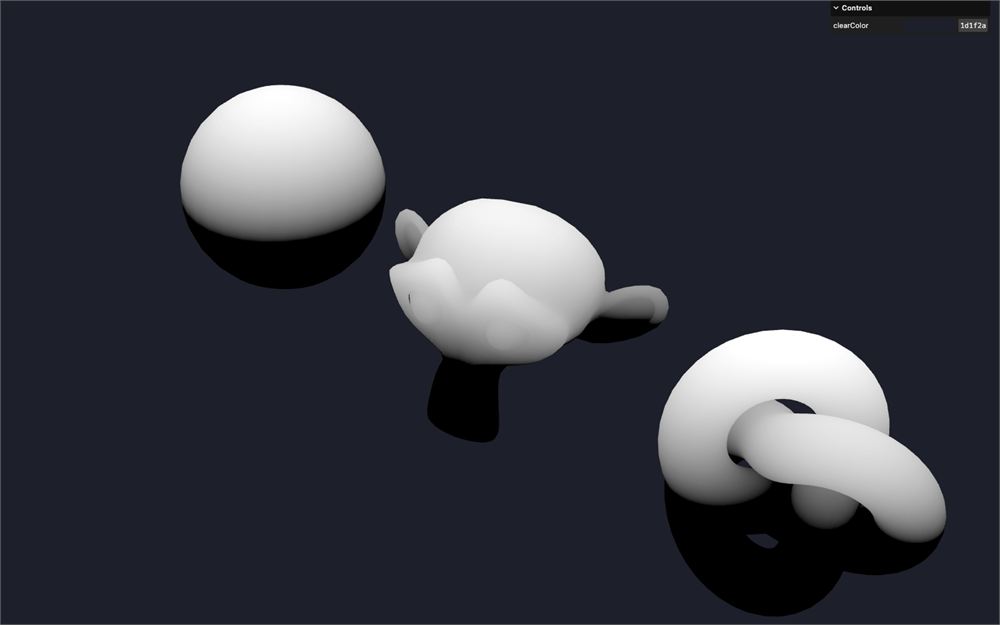
我们得到一个渐变。
我们现在想让那个渐变在达到 1.0 时回到 0.0,这样它就能重复自己。我们可以用 mod 函数做到这一点:
void main()
{
    // Stripes
    float stripes = mod(vPosition.y, 1.0);

    // ...
}
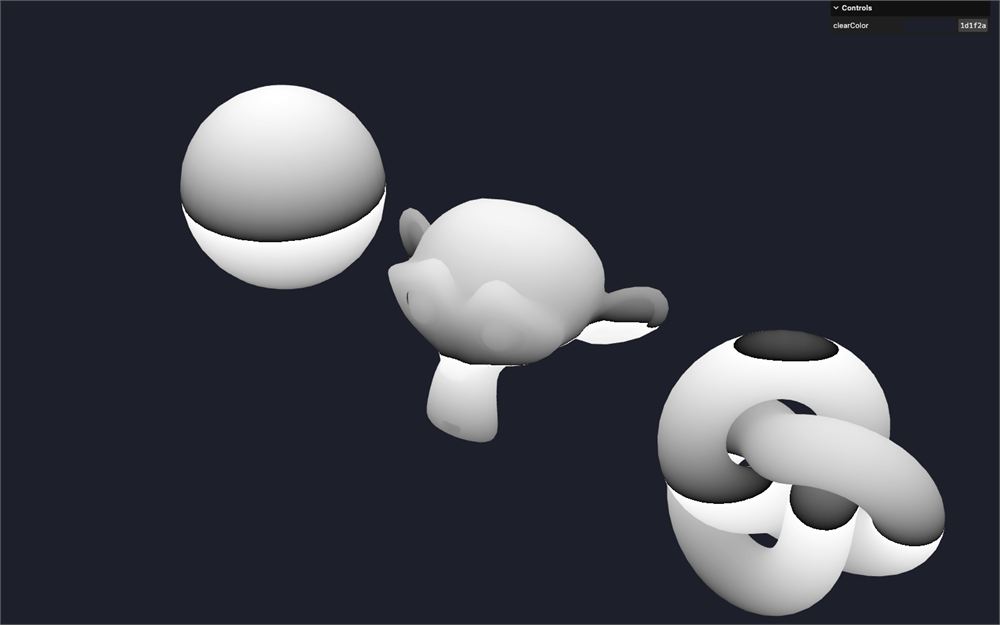
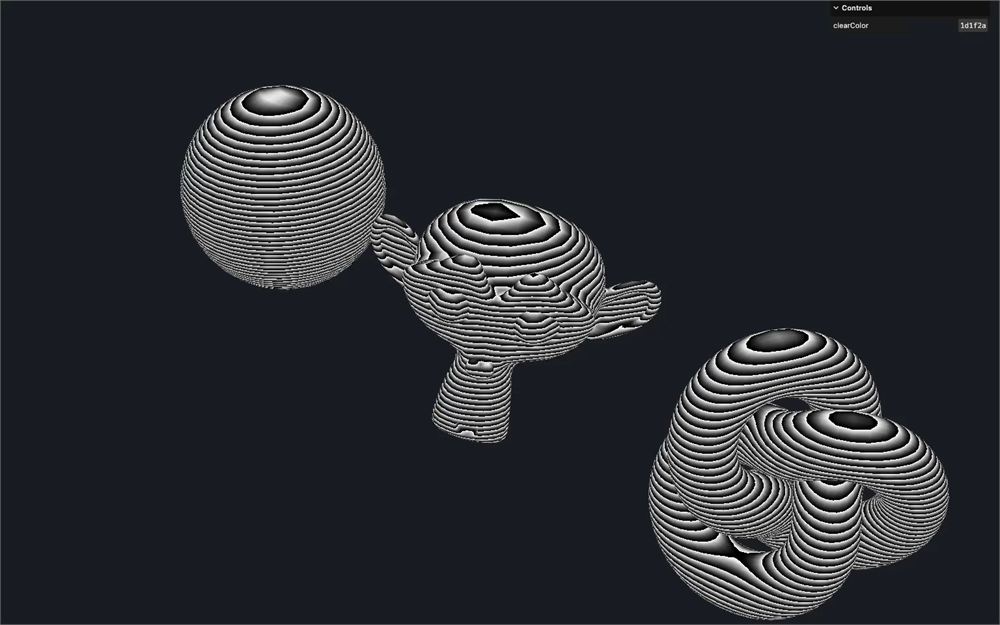
渐变似乎在重复自己,但我们只能看到两三次重复。
通过把 vPosition.y 乘以 20.0 来增加渐变的频率:
void main()
{
    // Stripes
    float stripes = mod(vPosition.y * 20.0, 1.0);

    // ...
}
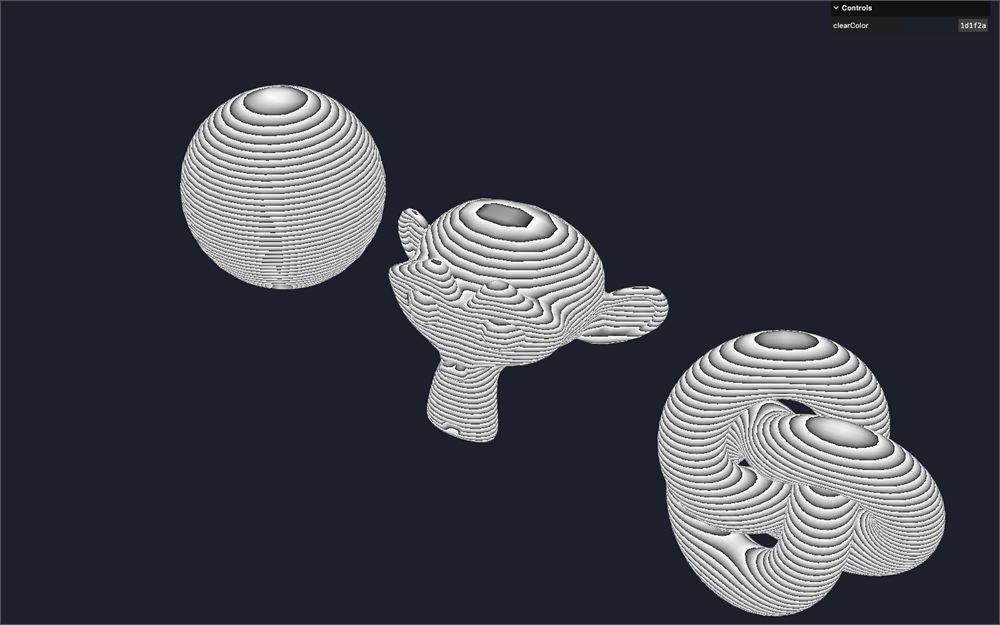
如果你去搜索取模(modulo)的定义,你可能会被吓到,尤其是如果数学不是你的菜。但我喜欢这样理解它:你把一个值作为第一个参数传进去,当那个值达到第二个参数时,它就回到 0:
你可能注意到了,渐变图案在空间里似乎是相同的,意味着它不随物体旋转,这正是我们想要的。
出于好奇,在 vertex.glsl 里,把 position 而不是 modelPosition 传给 vPosition:
void main()
{
    // ...
    vPosition = position.xyz;
}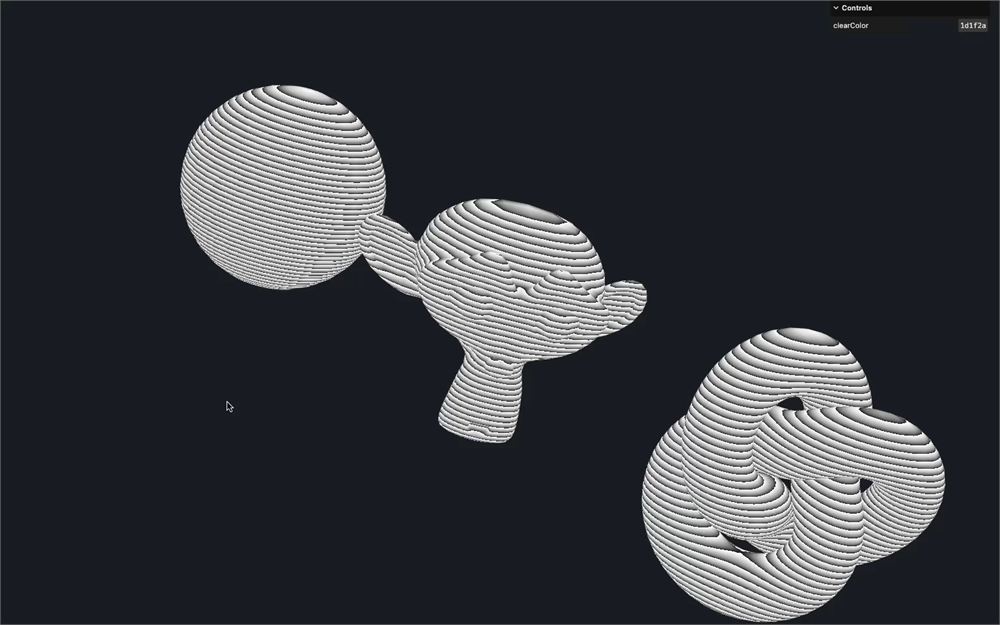
图案现在跟随物体变换了。这可能是你想要的那种风格,但我更喜欢我们之前有的那个“世界空间”图案。
把 modelPosition.xyz 加回来:
void main()
{
    // ...
    vPosition = modelPosition.xyz;
}
回到 fragment.glsl:我们想让渐变更锐利。我们仍然想让值从 0.0 到 1.0,但要花更长时间起飞、缓慢增加,然后快速达到 1.0。而我们已经知道怎么做。我们可以用幂(power):
注意,用幂这样压缩一个值,只在那个值从 0 到 1 时才有效。
对 stripes 应用一个 pow,并把第二个参数设为 3.0:
void main()
{
    // Stripes
    float stripes = mod(vPosition.y * 20.0, 1.0);
    stripes = pow(stripes, 3.0);

    // ...
}
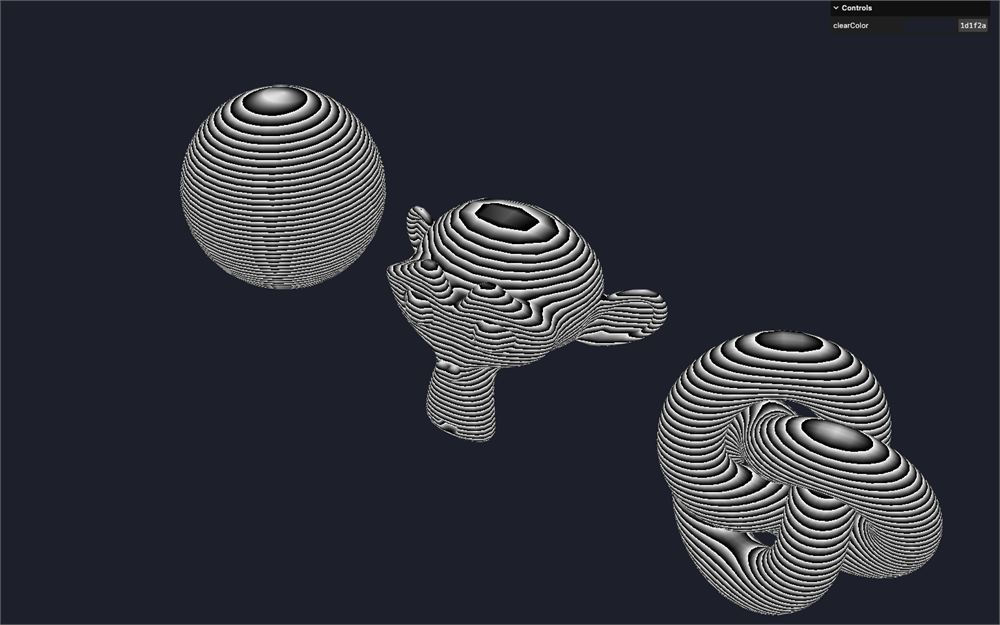
动画
最后,我们想让图案向上移动,以便给静态物体增添一些生命和动画。
在 script.js 里,给材质添加一个 uTime uniform,并给它赋值一个 Uniform 类实例,设为 0:
const material = new THREE.ShaderMaterial({
    // ...
    uniforms:
    {
        uTime: new THREE.Uniform(0),
    },
    // ...
})
在 tick 函数里,把 elapsedTime 赋值给 uniform 的 value:
const tick = () =>
{
    const elapsedTime = clock.getElapsedTime()

    // Update material
    material.uniforms.uTime.value = elapsedTime

    // ...
}
回到 fragment.glsl,取回 uTime uniform,并从 vPosition.y 里减去它:
uniform float uTime;

// ...

void main()
{
    // Stripes
    float stripes = mod((vPosition.y - uTime) * 20.0, 1.0);
    // ...
}
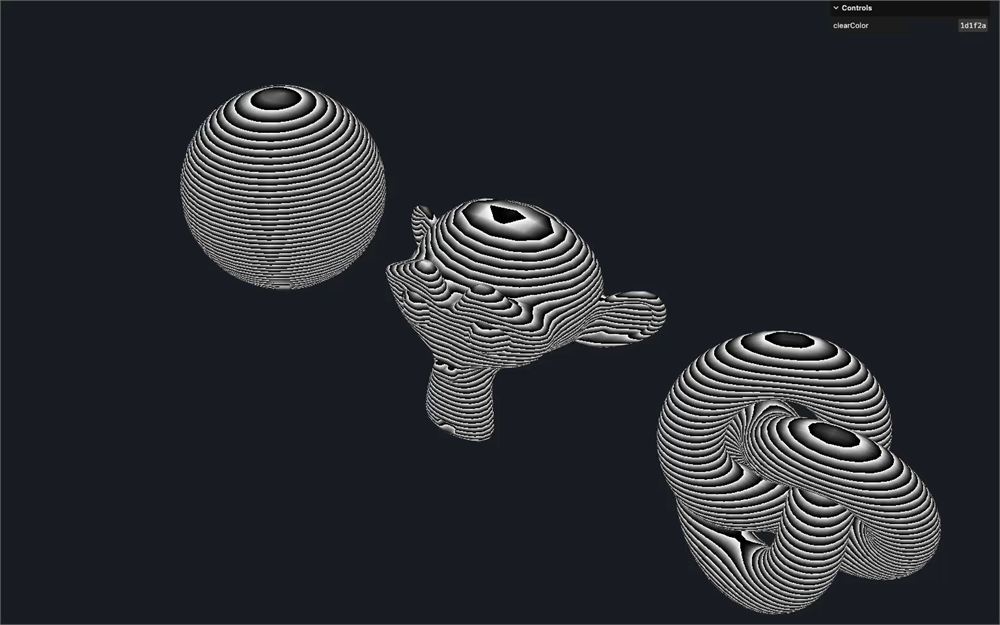
通过把它乘以 0.02 慢下来:
uniform float uTime;
// ...

void main()
{
    // Stripes
    float stripes = mod((vPosition.y - uTime * 0.02) * 20.0, 1.0);
    // ...
}
如果你想更清楚地欣赏结果,可以停用物体的旋转。
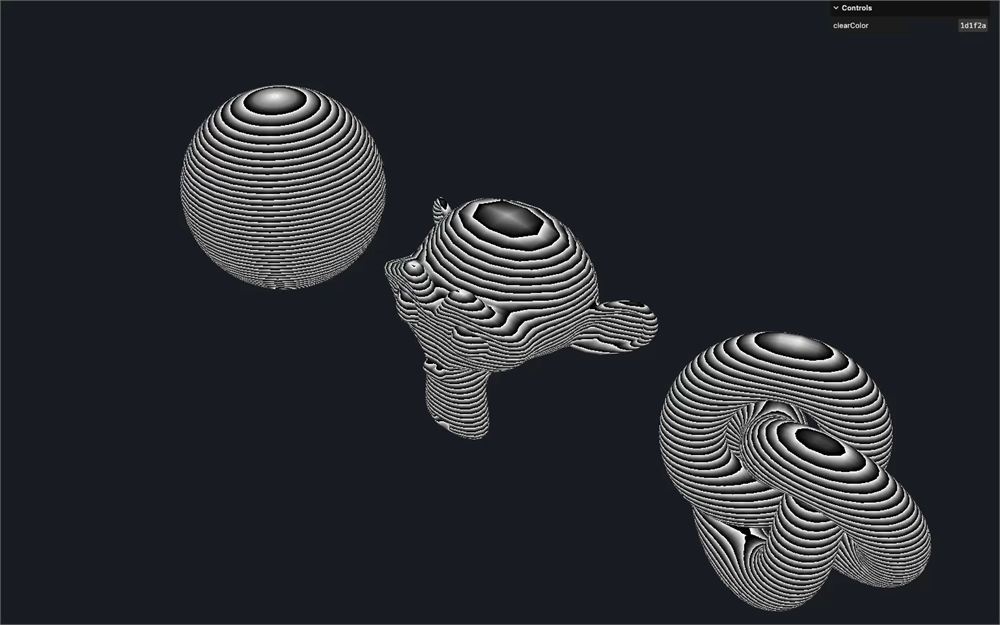
正如你看到的,我们只用到了 vPosition 的 y 属性,本该只把那个值作为 varying 传过去,而不是传一个 vec3,但让我们保持这样,因为我们很快会需要整个 vec3。
Alpha
到目前为止,我们一直把 stripes 当作颜色用。让我们试试把它用在 gl_FragColor 的 alpha 上,并把其余设为 1.0:
void main()
{
    // ...
    gl_FragColor = vec4(1.0, 1.0, 1.0, stripes);
    // ...
}
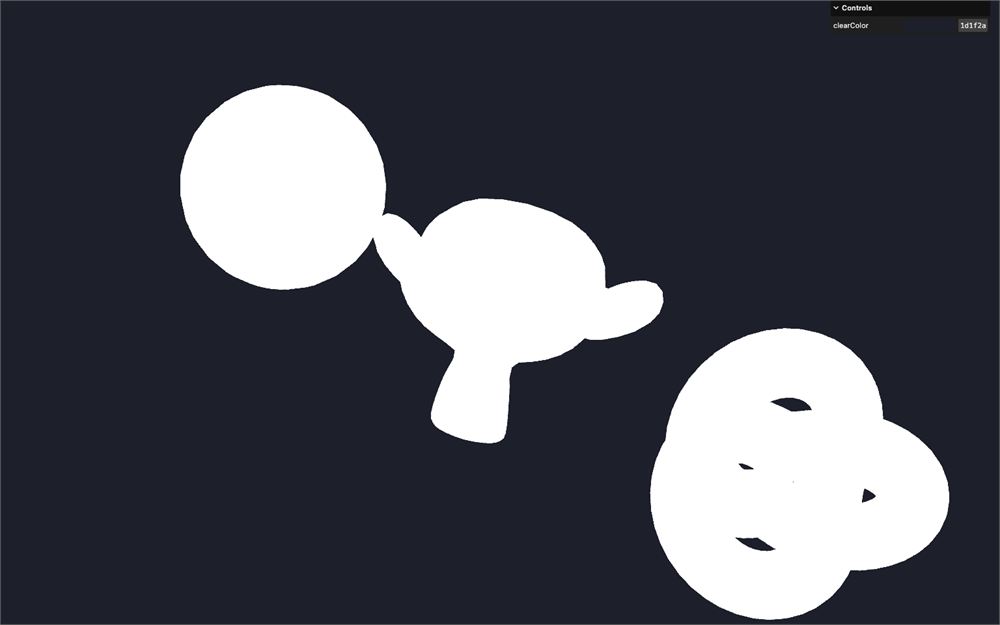
和往常一样,我们需要在材质上把 transparent 设为 true 来支持透明度:
const material = new THREE.ShaderMaterial({
    // ...
    transparent: true
})
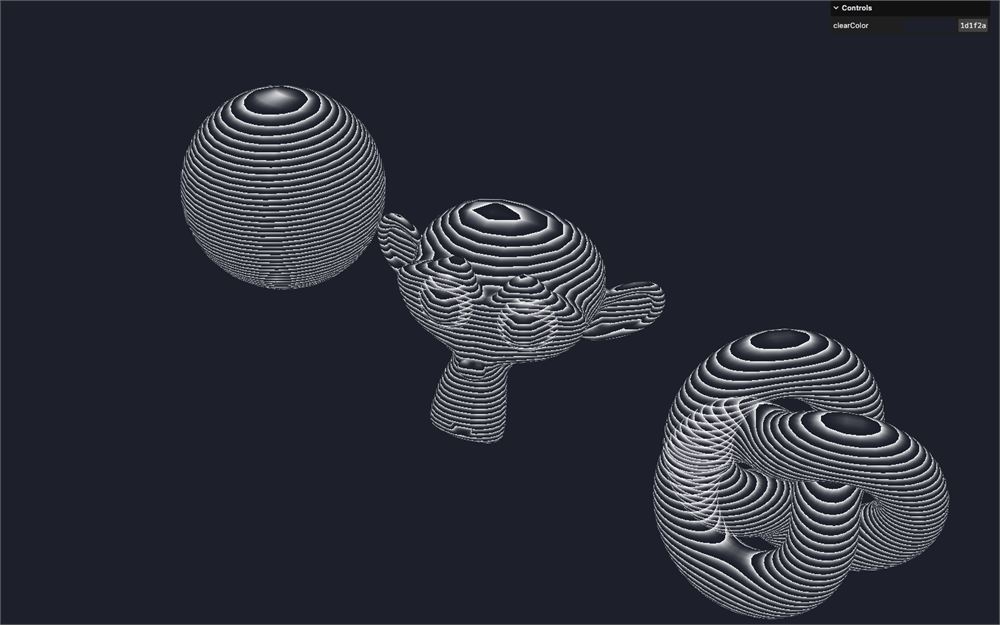
Fresnel
图案看起来不错,但有点太规则了。大多数时候,全息图的表示方式是外面比里面更亮。
我们可以用法线(normal)和视角做到这一点。
我们想让一个值在视角与法线垂直时为 1.0,在视角与法线对齐时为 0.0:
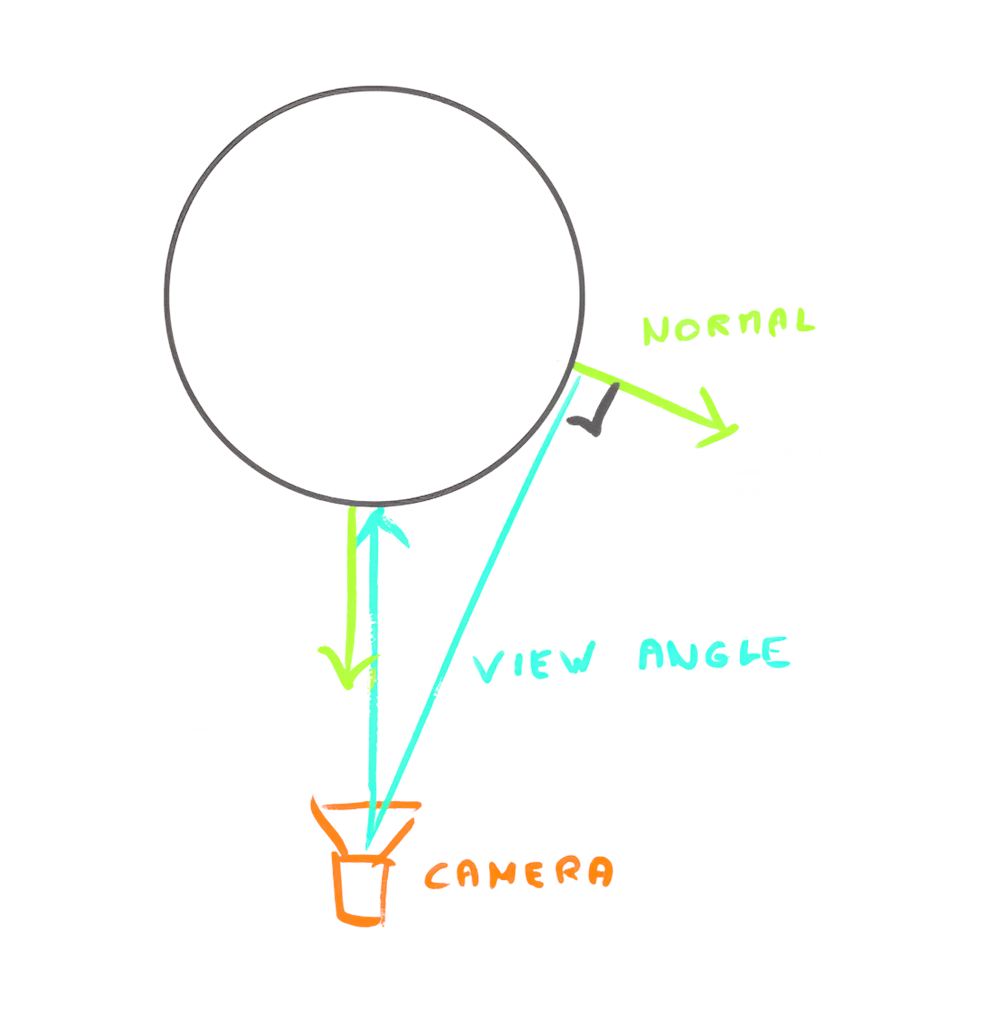
这个效果叫做“Fresnel”(菲涅尔)。
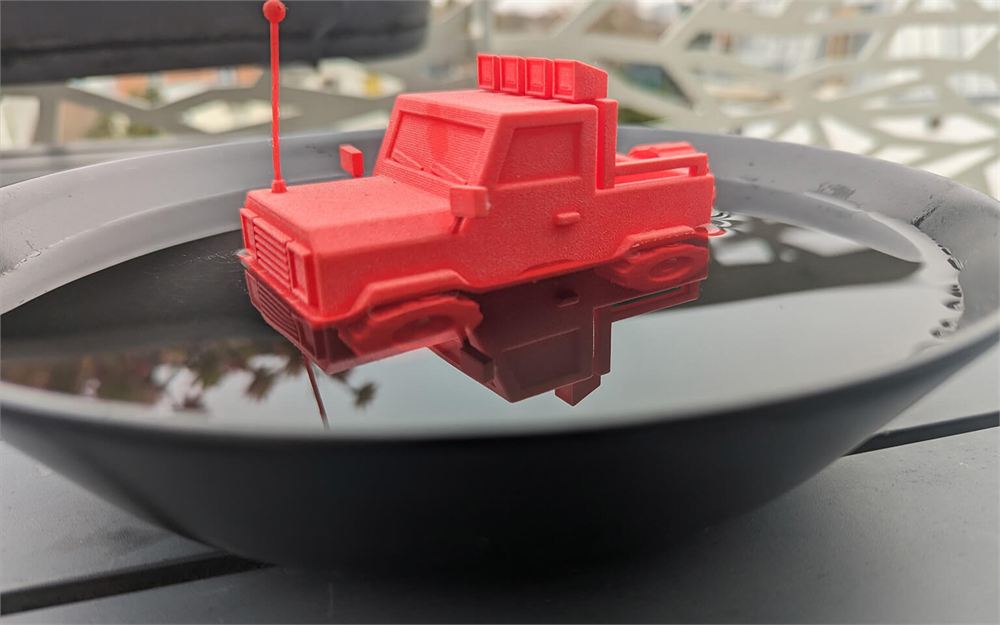
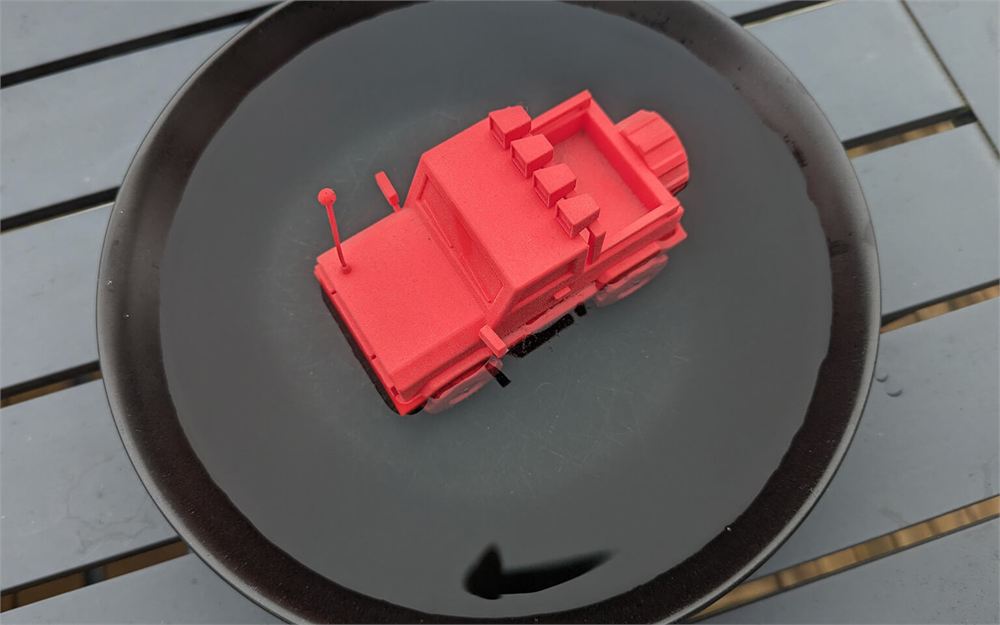
Fresnel 用得很多,尽管我们几乎注意不到它。它被用来创建像我们现在做的酷炫效果,但它也被用在物理精确的渲染里来处理反射,因为一个表面在窄角度观看时反射更强。你在看湖面时就能体会到这一点。从上方看时,你能看到水里的石头和鱼。但从窄角度看时,由于反射,你看不到水里有什么。
这里有一个例子,是我相隔几秒拍的照片。
从窄角度看时,天空的反射很亮,我们几乎看不见盘子的底部:
从垂直角度看时,我们能看见盘子的底部,甚至能注意到细小的划痕:
如果你好奇,这里有一些深入探讨这个主题的文章:
- https://www.racoon-artworks.de/cgbasics/fresnel.php
- https://www.dorian-iten.com/fresnel/
- https://shanesimmsart.wordpress.com/2022/03/29/fresnel-reflection/
顺便说一句,像 MeshStandardMaterial 这样的 Three.js 材质就在用 Fresnel 来模拟真实的材质。
法线
我们要在 fragment shader 里计算 Fresnel,以避免视觉伪影。首先,把法线作为 varying 传给片元。
在 vertex.glsl 里,创建一个 vec3 vNormal varying,并把 normal 赋值给它:
// ...
varying vec3 vNormal;

void main()
{
    // ...
    vNormal = normal;
}
在 fragment.glsl 里,取回 vNormal varying,并把 alpha 设为 1.0 后传给 gl_FragColor,就为了看一眼:
// ...
varying vec3 vNormal;

void main()
{
    // ...
    gl_FragColor = vec4(vNormal, 1.0);
    // ...
}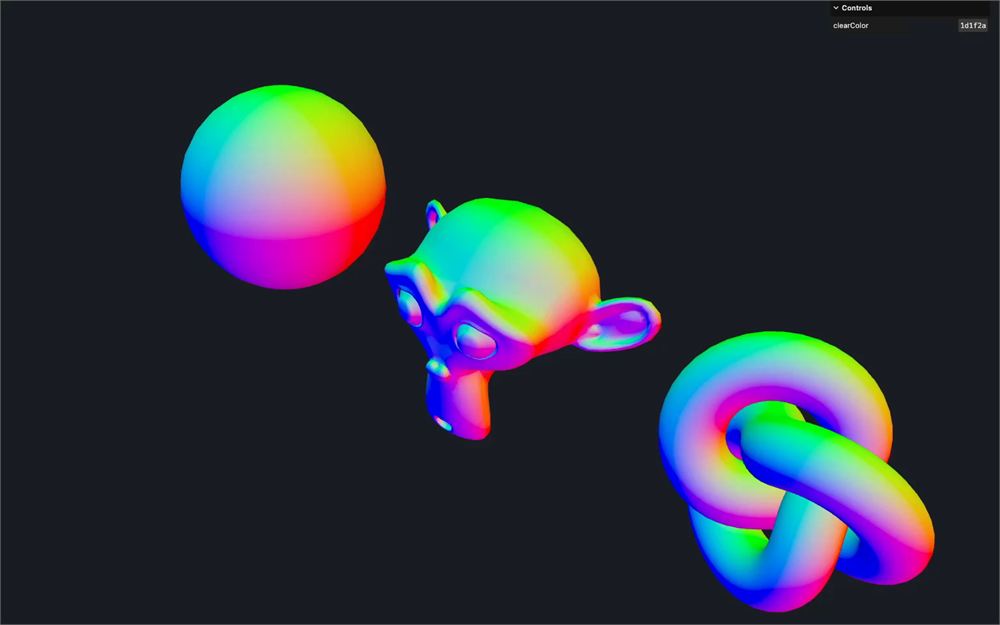
它看起来没问题,但我们实际上犯了两个错误。既然我们暂时注意不到那些错误,让我们先继续,稍后会绕回来处理。
点积
记住我们想知道法线和视线向量有多垂直。但视线向量到底是什么?
它是一个从相机位置到片元位置的 3D 向量:
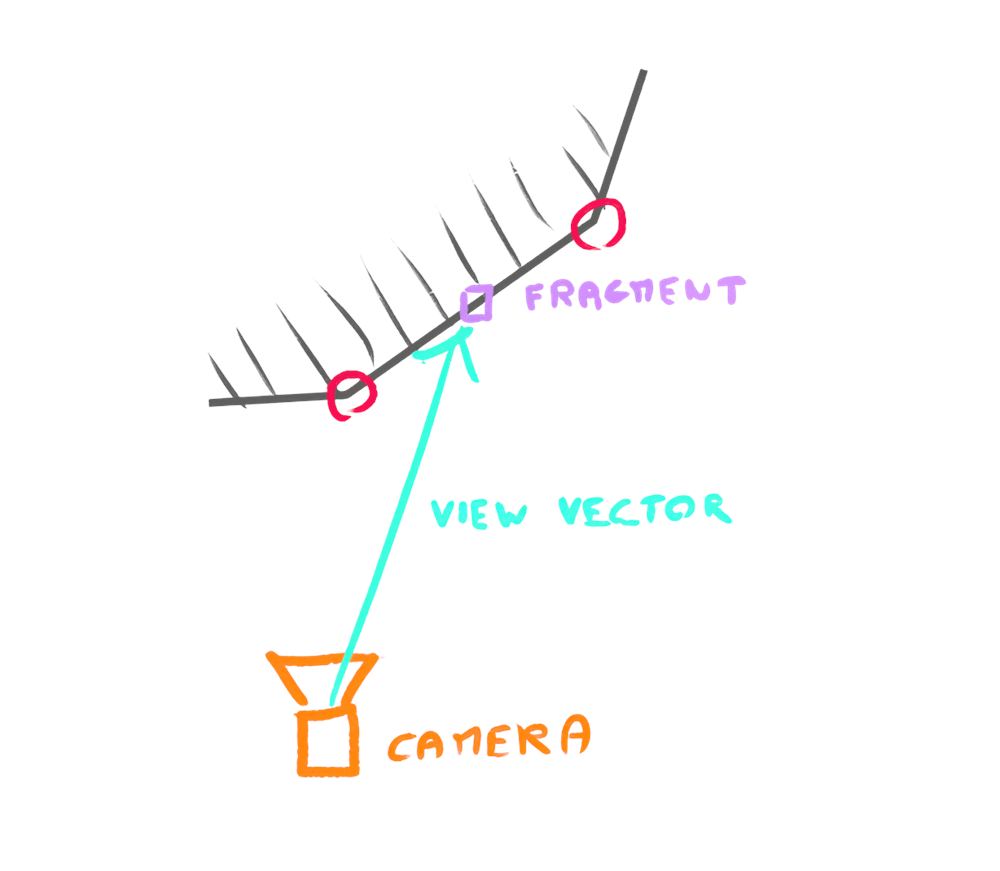
好消息是,多亏了 vPosition,我们已经有了片元的 3D 位置,而且多亏了 Three.js 内置 uniforms,更确切地说是 cameraPosition,我们已经能访问相机位置了。
要得到两个向量之间的向量,我们可以简单地从目的地减去原点:
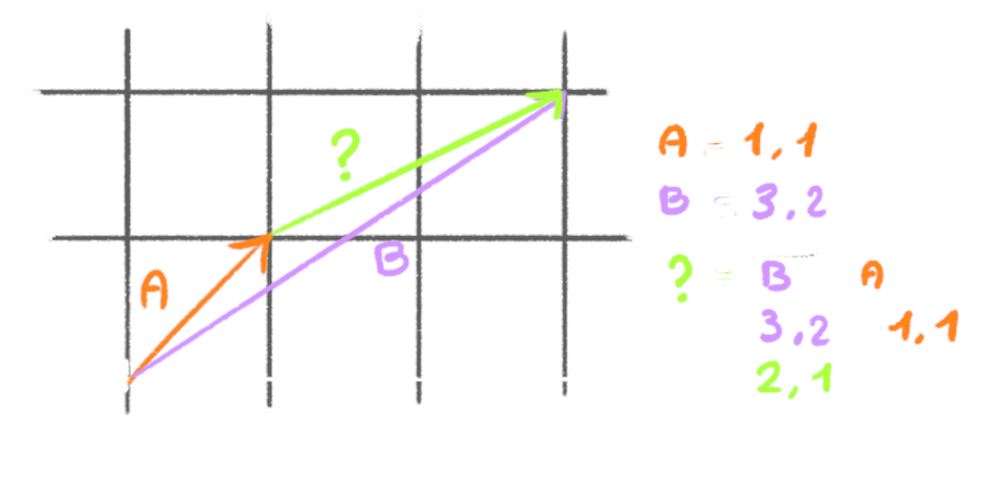
在我们的情况里,目的地是 vPosition,原点是 cameraPosition。
把结果保存为 viewDirection:
void main()
{
    // ...

    // Fresnel
    vec3 viewDirection = vPosition - cameraPosition;

    // ...
}
我们要用一个特殊函数来比较 viewDirection 和 vNormal,它要求两个向量长度相同,而目前并非如此。
vNormal 的长度应该是 1,但 viewDirection 可能变化很大。要强制它长度为 1,我们可以用 normalize:
void main()
{
    // ...

    // Fresnel
    vec3 viewDirection = normalize(vPosition - cameraPosition);

    // ...
}
终于到了比较 viewDirection 和 vNormal 的时候了,我们要用一个点积(dot product)。
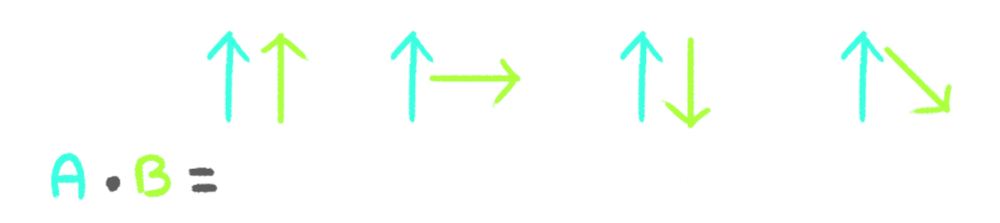
让我用简单的话解释点积做了什么:
考虑两个长度相同的向量:
- 如果它们方向相同,我们得到
1 - 如果它们垂直,我们得到
0 - 如果它们相反,我们得到
-1 - 之间的值是插值的
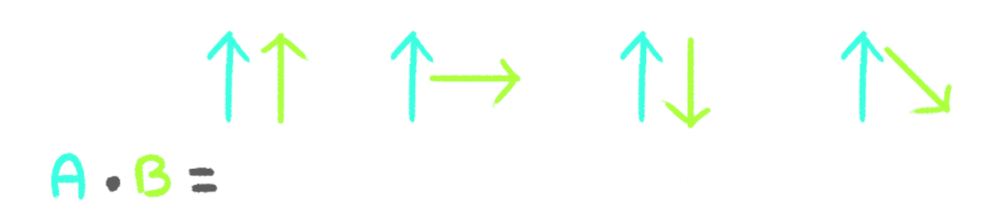
创建一个 float fresnel 变量,并把 viewDirection 和 vNormal 的 dot 结果赋值给它。把结果传给 gl_FragColor:
void main()
{
    // ...
    vec3 viewDirection = normalize(vPosition - cameraPosition);
    float fresnel = dot(viewDirection, vNormal);

    // Final color
    gl_FragColor = vec4(1.0, 1.0, 1.0, fresnel);
    // ...
}
不是预期的结果。我们有几件事要修复。
修复法线方向
首先,Fresnel 值不应该随物体旋转而改变。如果你看球体,你能看到 Fresnel 随球体旋转,尽管相对于相机它应该保持不变。
这是因为我们用的是基础的 normal 属性,它没有考虑物体的变换。
而我们已经知道如何取回并应用物体的变换。我们可以像对 position 那样使用 modelMatrix。
在 vertex.glsl 里,创建一个 modelNormal,并把 modelMatrix 应用到它,但这一次,把第四个值设为 0.0 而不是 1.0:
void main()
{
    // ...

    // Model normal
    vec4 modelNormal = modelMatrix * vec4(normal, 0.0);

    // ...
}
当第四个值设为 1.0 时,意味着我们的向量是“齐次的”,modelMatrix 蕴含的所有 3 种变换(平移、旋转、缩放)都会被应用,这在位置的情况下是完美的。
当第四个值设为 0.0 时,意味着我们的向量不是齐次的,平移不会被应用,这在法线的情况下是理想的,因为法线不是位置,它是一个方向。
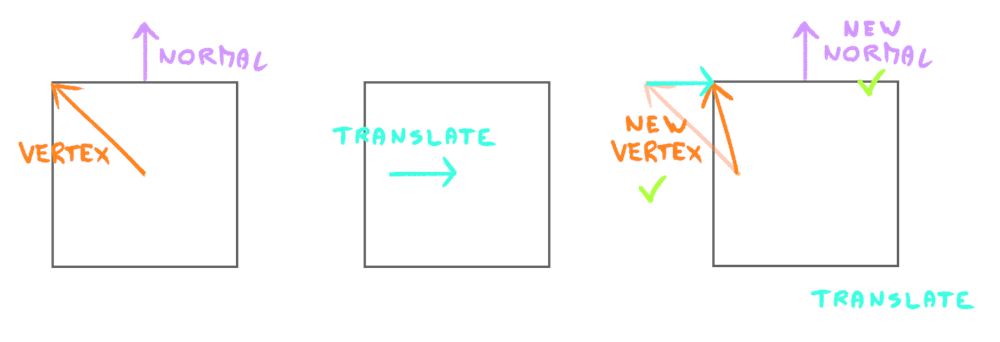
要理解这一点,想象我们在一个简单几何体上应用平移,并聚焦于一个顶点和一个法线:
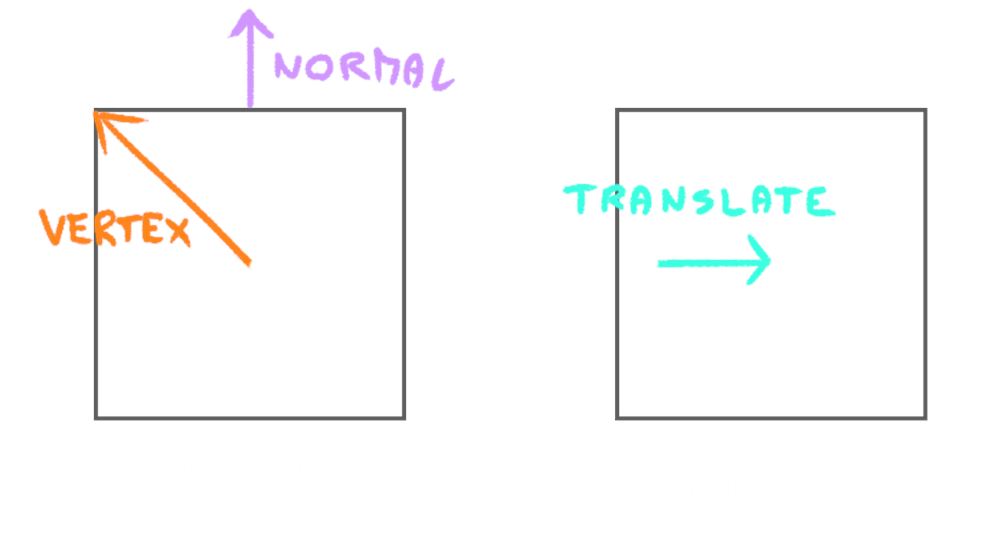
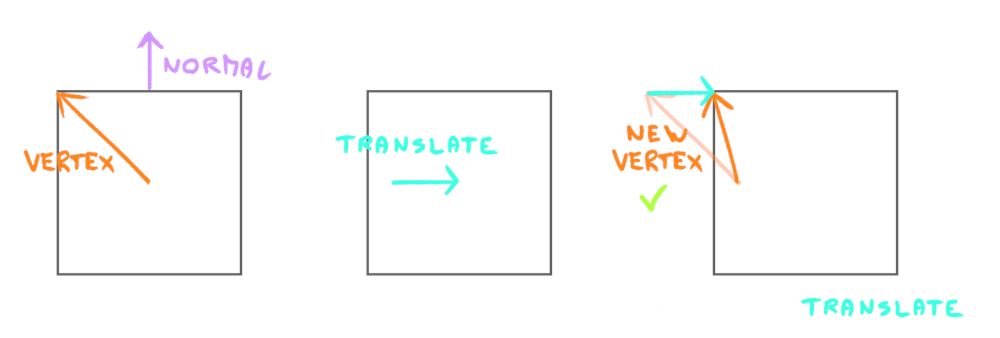
在顶点的情况下,我们想应用平移,使它向右移动:
如果我们把同样的平移应用到法线上,那个法线最终也会向右偏,这是错的:
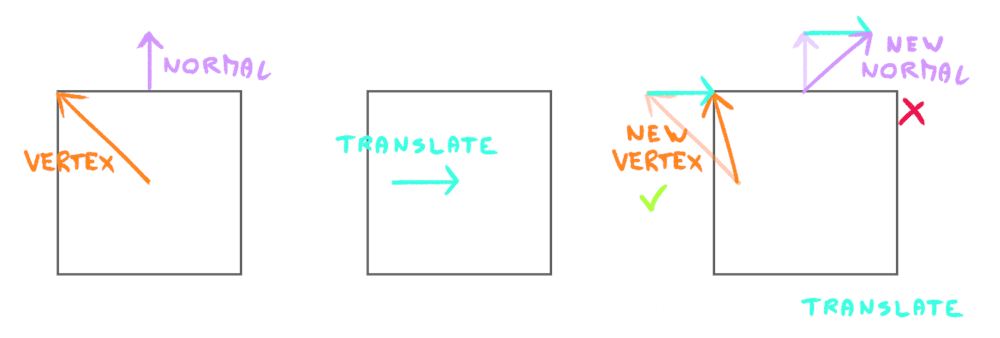
但如果我们在应用 modelMatrix 之前把 vec4 的第四个值设为 0.0,就只有旋转会被应用。在这个情况里,因为没有旋转只有平移,法线的方向被保留了:
至于缩放,是的它会被应用,但这不是问题,因为我们稍后会在 fragment shader 里再次归一化 varying。
现在我们可以把 modelNormal 的 xyz 赋值给 vNormal:
void main()
{
    // ...
    vNormal = modelNormal.xyz;
}
修复范围
你可能以为自己犯了个错误,因为屏幕上什么都没有了,但仔细看,你会注意到物体的边界。
记住我们关于 dot 输出的说法:
- 如果它们方向相同,我们得到
1 - 如果它们垂直,我们得到
0 - 如果它们相反,我们得到
-1
我们看不到任何东西,因为法线向量朝向相机:
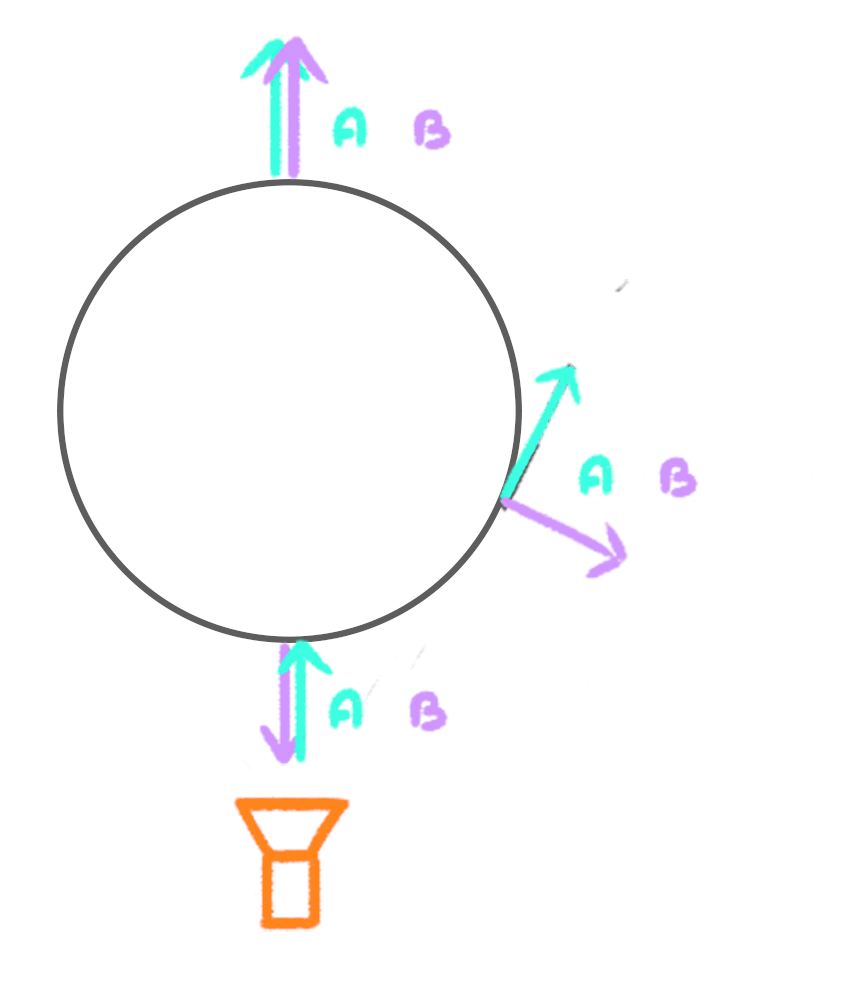
有几种方法可以修复它,但就个人而言,我喜欢给 dot 的输出加上 1.0,这样值就从 0.0(相反)到 1.0(垂直)再到 2.0(同向):
void main()
{
    // ...
    float fresnel = dot(viewDirection, vNormal) + 1.0;

    // ...
}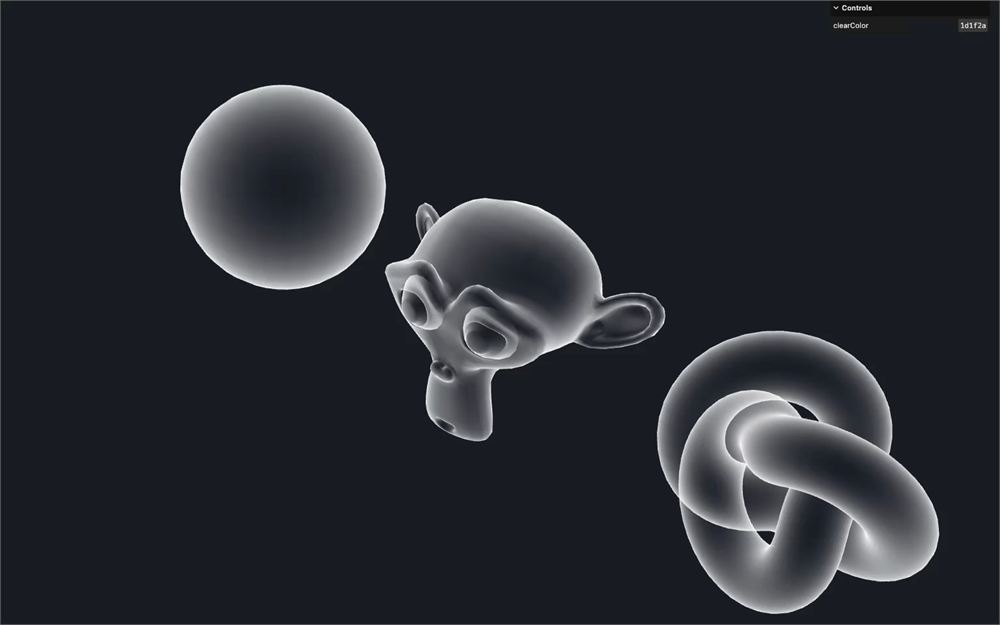
这就是我们想看到的 Fresnel。
归一化法线?
但我们还没修完。如果你看球体,你可能会注意到表面上有网格图案。由于压缩,这在视频里可能看不见,但你可以在自己的电脑上测试。
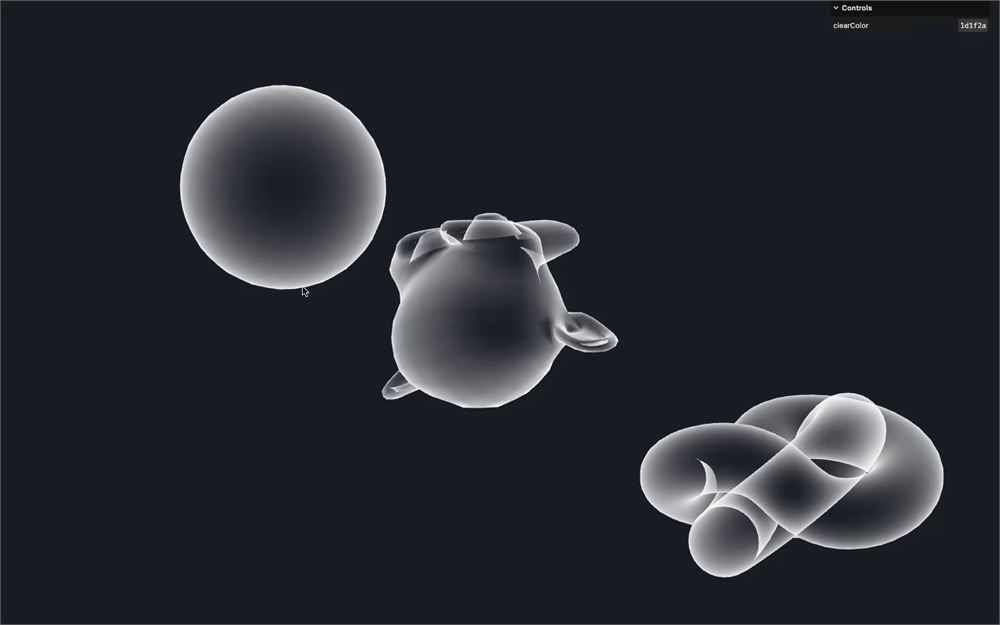
它几乎看不见,但它就在那里。
这是因为法线长度不是 1.0。这难道不奇怪吗?尽管我们在把 normal 作为 varying 传给片元之前应用了 modelMatrix,它的长度应该是 1.0。
原因是,在顶点之间,varying 会被插值。而如果你插值两个归一化的向量,你不一定得到一个长度为 1 的向量:
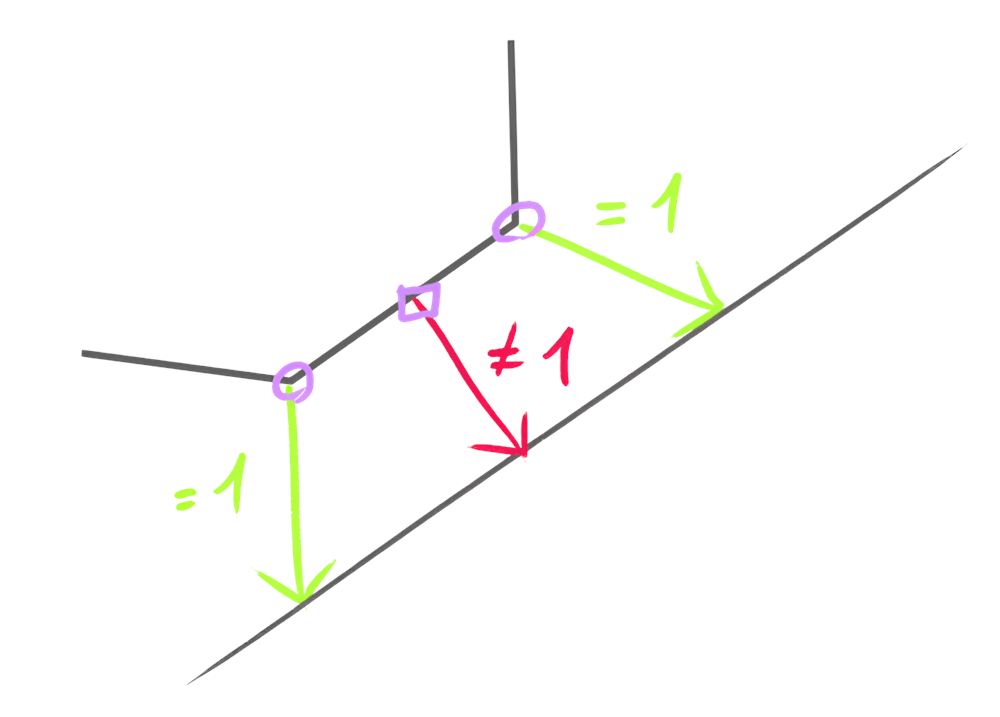
幸运的是,我们可以在 fragment shader 里再次归一化它,轻松修复这个问题。
在 fragment shader 的开头,创建一个 vec3 normal 变量,把 vNormal 的归一化版本赋值给它,并把它传给 dot 而不是 vNormal:
void main()
{
    // Normal
    vec3 normal = normalize(vNormal);

    // ...
    float fresnel = dot(viewDirection, normal) + 1.0;

    // ...
}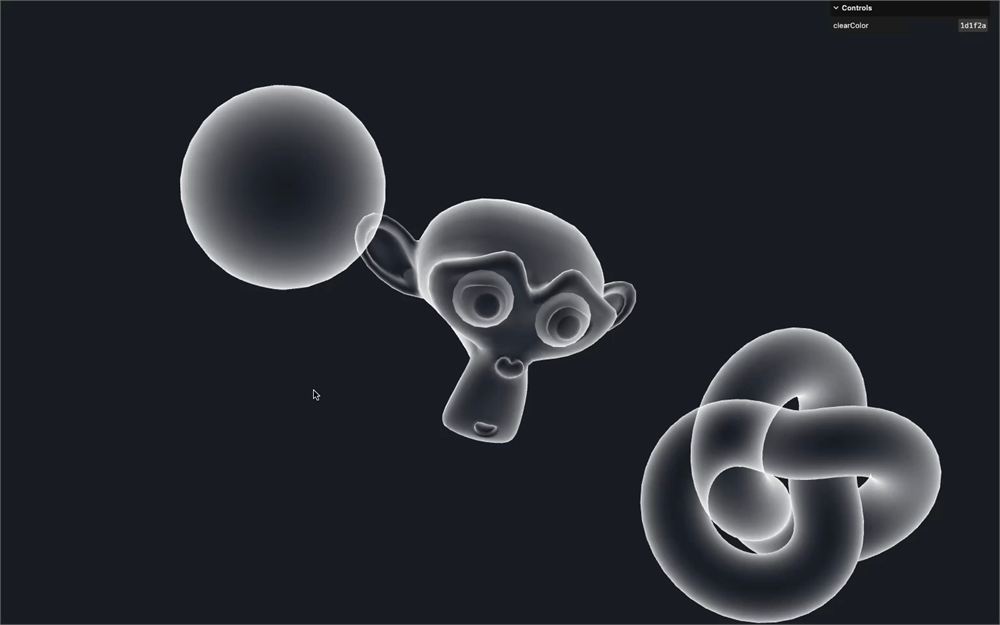
网格伪影消失了。
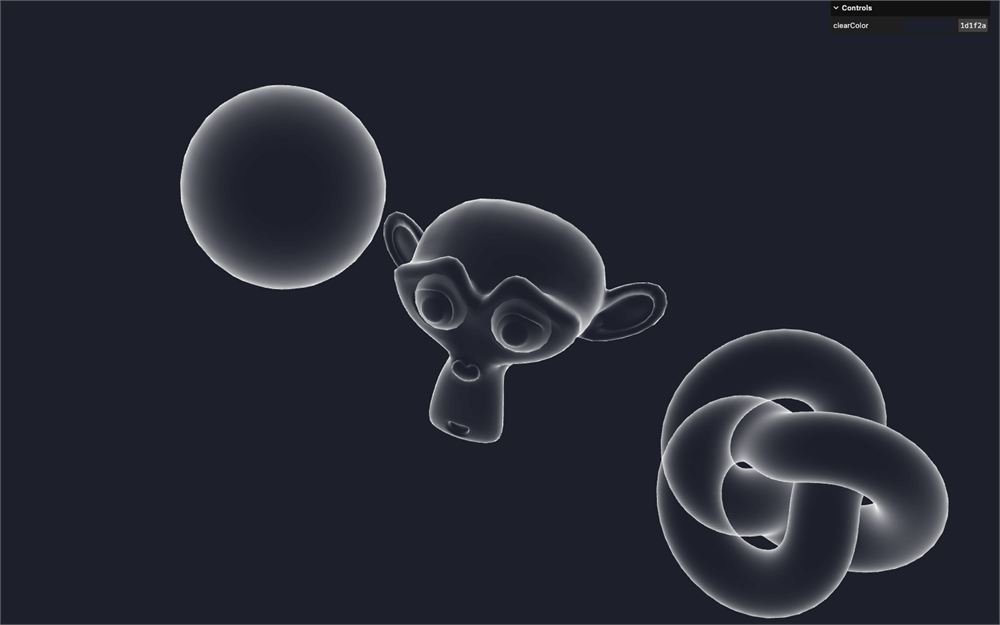
幂
让我们用 pow 函数对 fresnel 应用一个幂,使它更锐利:
void main()
{
    // ...
    float fresnel = dot(viewDirection, normal) + 1.0;
    fresnel = pow(fresnel, 2.0);

    // ...
}
与条纹结合
是时候把 stripes 图案和 fresnel 结合起来了。
要做到这一点,我们要创建一个名为 holographic 的新变量,它会是我们在 gl_FragColor 的 alpha 上使用的最终变量,并把 stripes 赋值给它,乘以 fresnel:
void main()
{
    // ...

    // Holographic
    float holographic = stripes * fresnel;

    // Final color
    gl_FragColor = vec4(1.0, 1.0, 1.0, holographic);
    // ...
}
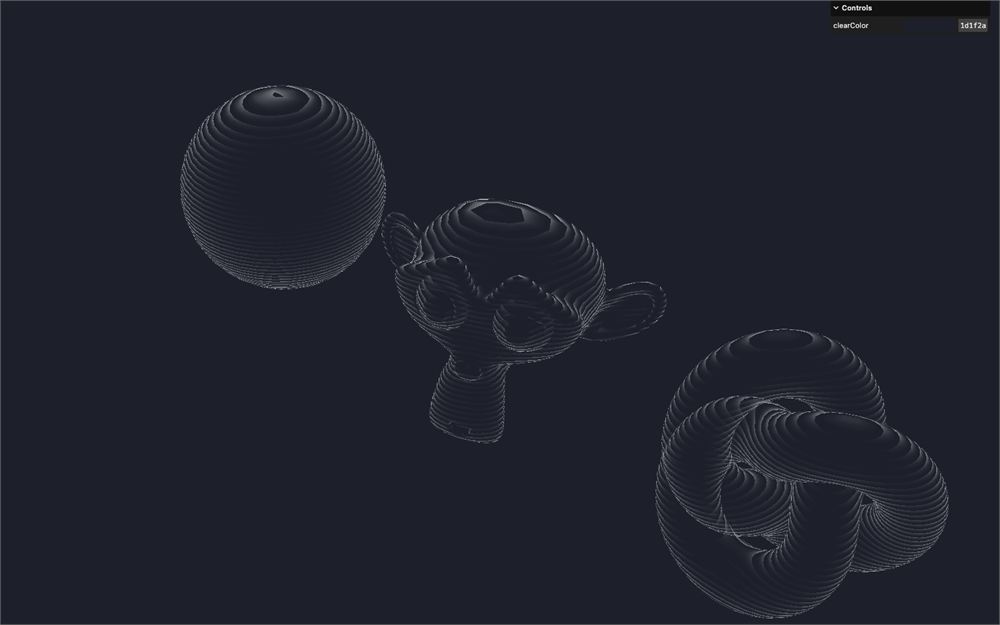
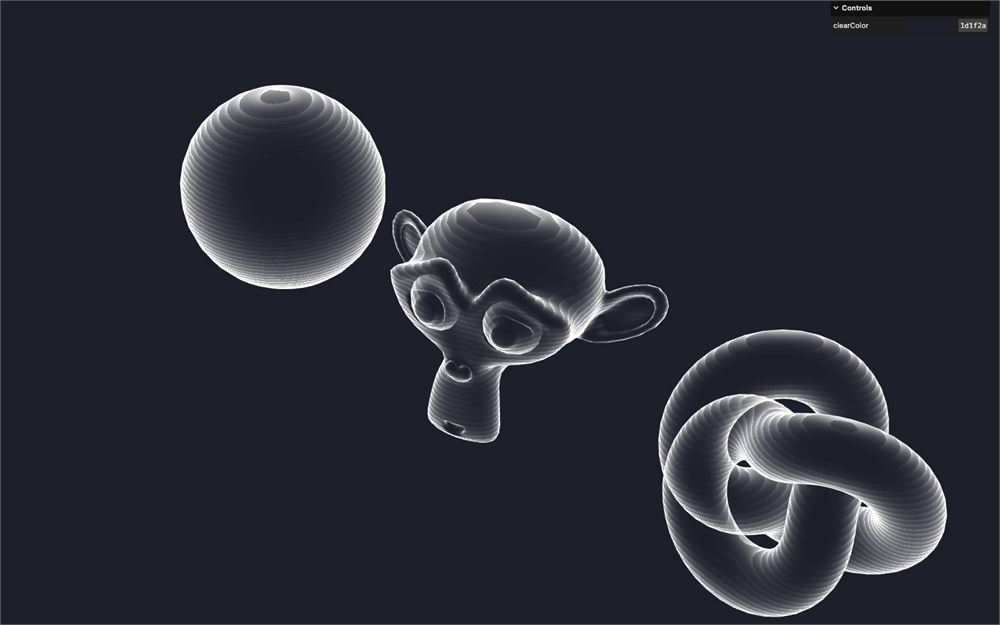
结合看起来不错,但太暗了,我们几乎看不见物体。
我们要在它上面加上 fresnel,并把它乘以 1.25 使它更强:
void main()
{
    // ...

    // Holographic
    float holographic = stripes * fresnel;
    holographic += fresnel * 1.25;

    // ...
}
背面
现实中的全息图(至少是我们想象的那样)应该是透明的。我们应该能看见正面和背面。
让我们试试在 material 里把 side 设为 DoubleSide:
const material = new THREE.ShaderMaterial({
    // ...
    side: THREE.DoubleSide
})
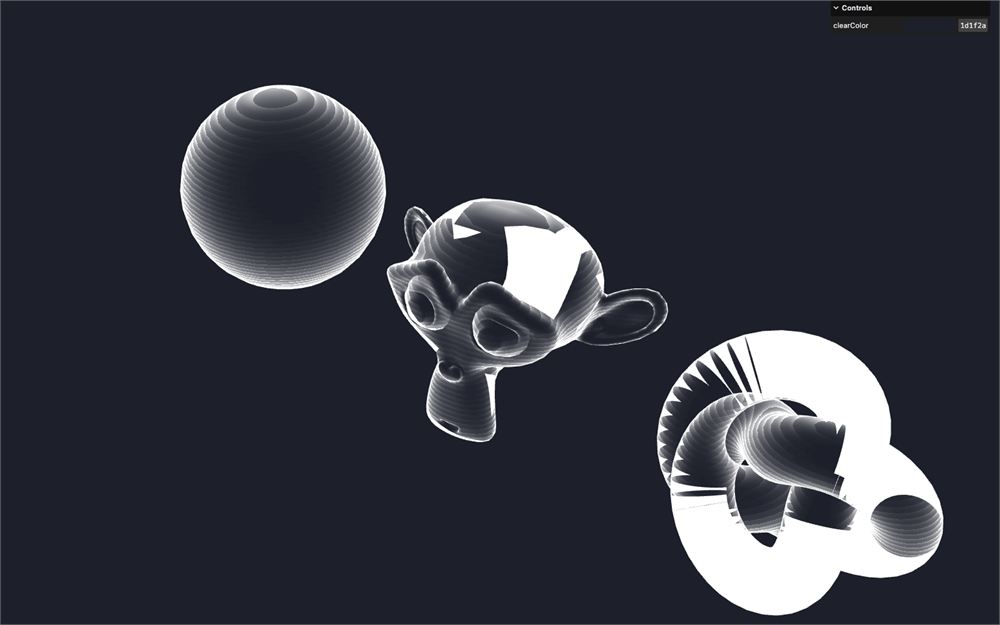
这不是我们想要的效果。
首先,如果你记得我们对 Fresnel 做的处理,我们给 dot 加了 1.0,导致背面值从 1.0 到 2.0,这就是为什么它现在看起来这么亮:
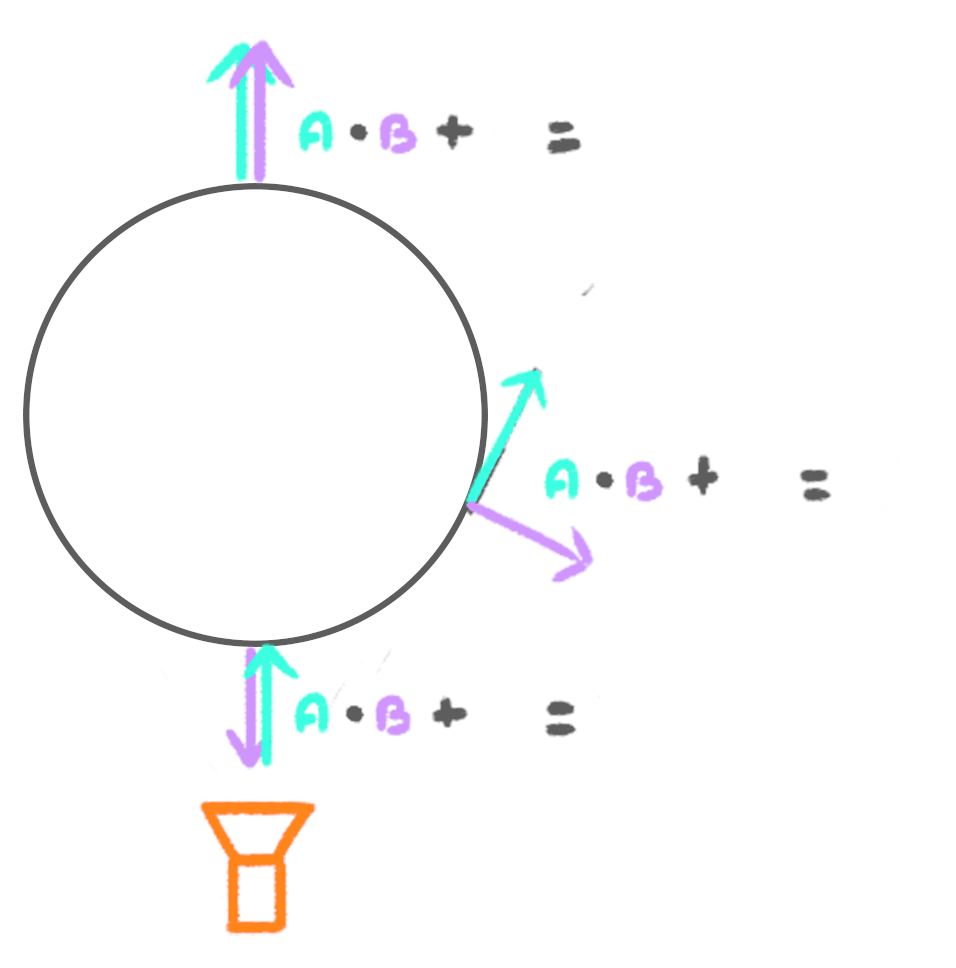
要修复那个,我们要反转法线,但只对背面。
有一个名为 gl_FrontFacing 的内置变量,它是一个布尔值,如果我们正在绘制的片元朝向相机则为 true,否则为 false。
在 fragment.glsl 里,紧接在归一化 vNormal 之后,用 ! 反转 gl_FrontFacing 来测试它是否是背面。接着,在 if 语句里,把 normal 乘以 - 1.0 来反转它:
void main()
{
    // Normal
    vec3 normal = normalize(vNormal);
    if(!gl_FrontFacing)
        normal *= - 1.0;

    // ...
}
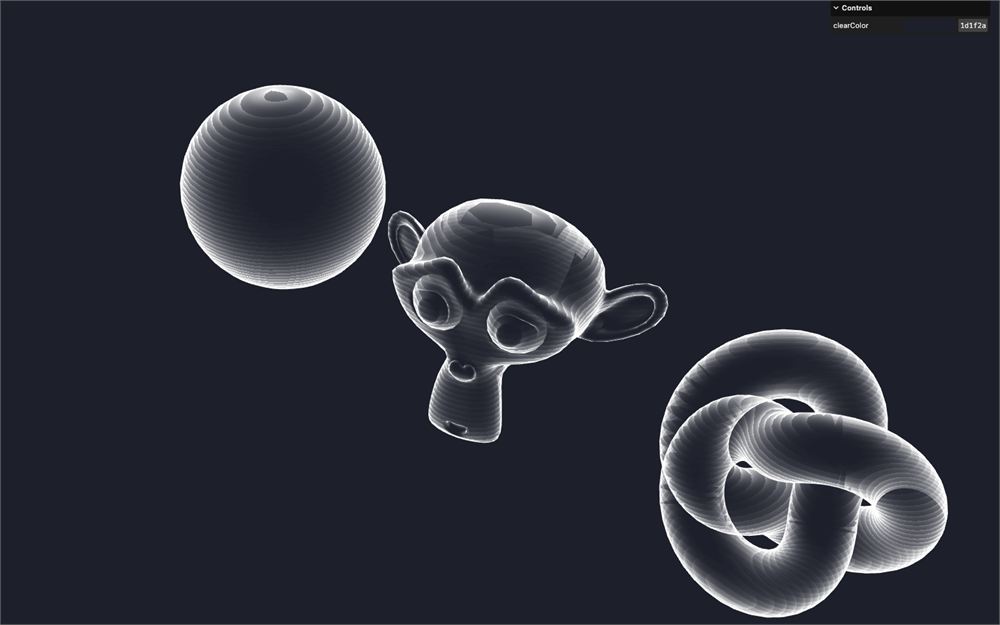
我们最终得到一个更好看的结果,但似乎有一些故障。这是因为正面遮挡了背面,因为它目前正在写入深度缓冲(depth buffer)。
在 material 上把 depthWrite 设为 false,来停止写入深度缓冲:
const material = new THREE.ShaderMaterial({
    // ...
    depthWrite: false
})
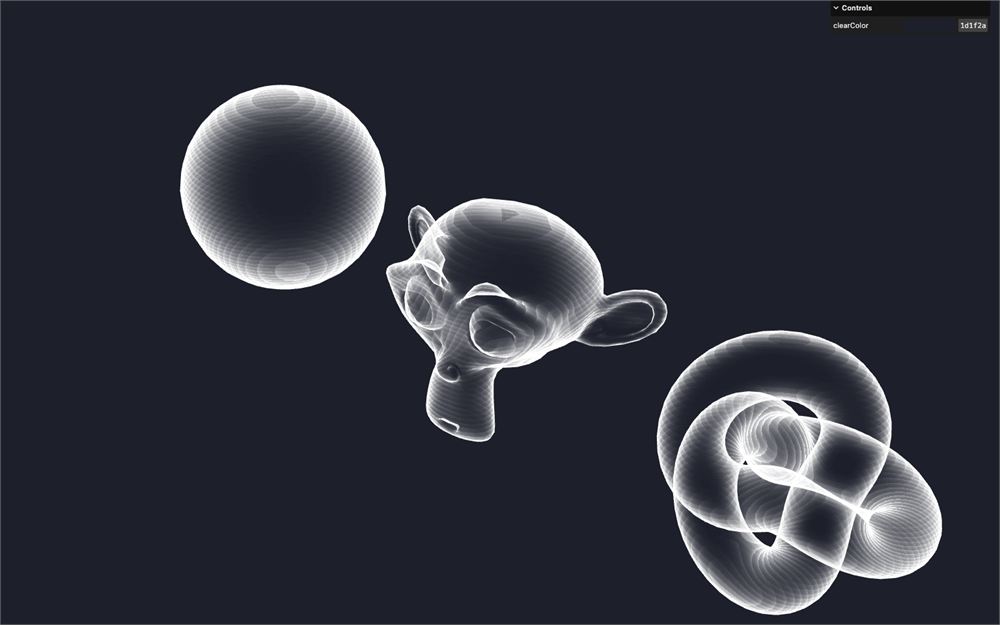
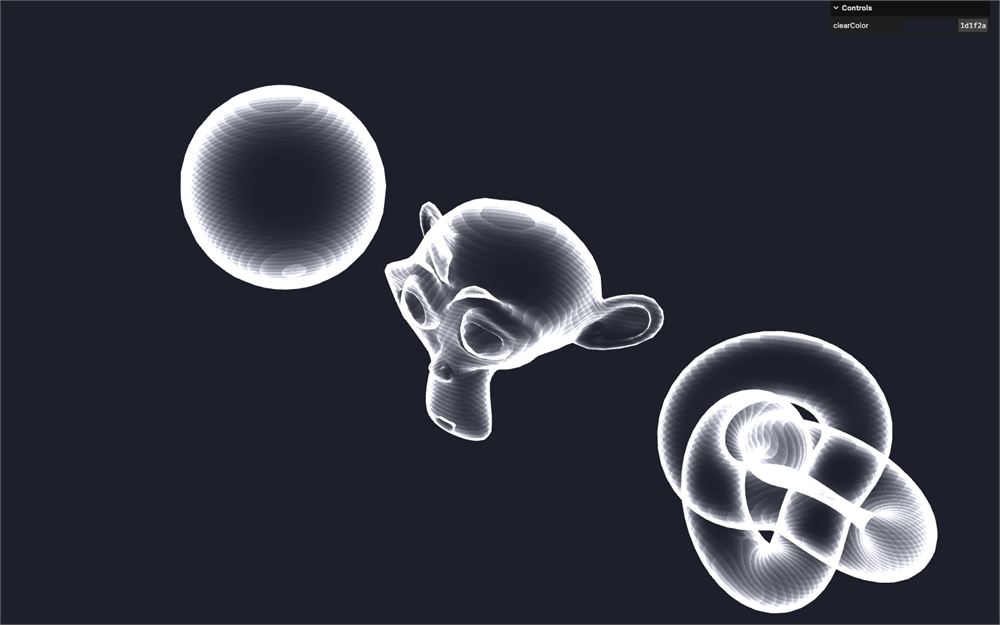
再进一步,既然全息图按理说由光组成,我们可以在 material 里把 blending 改成 AdditiveBlending:
const material = new THREE.ShaderMaterial({
    // ...
    blending: THREE.AdditiveBlending
})
衰减
我们要在边缘淡出 alpha。
要做到这一点,我们要用同样的 Fresnel,但用一个 smoothstep 来重映射它,使值在边缘附近为 1.0,并在最边缘平滑下降到 0.0:
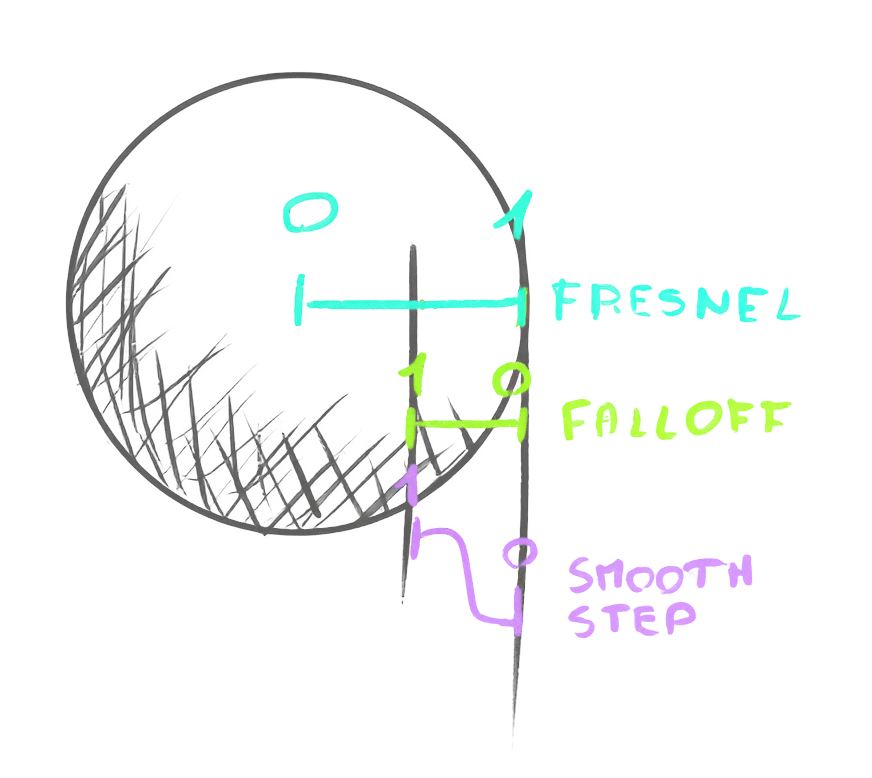
在 Fresnel 部分之后创建一个 float falloff 变量,并对 fresnel 变量应用一个从 0.8 到 0.0 的 smoothstep:
void main()
{
    // ...

    // Falloff
    float falloff = smoothstep(0.8, 0.0, fresnel);

    // ...
}
把 holographic 乘以 falloff:
void main()
{
    // ...

    // Holographic
    float holographic = stripes * fresnel;
    holographic += fresnel * 1.25;
    holographic *= falloff;

    // ...
}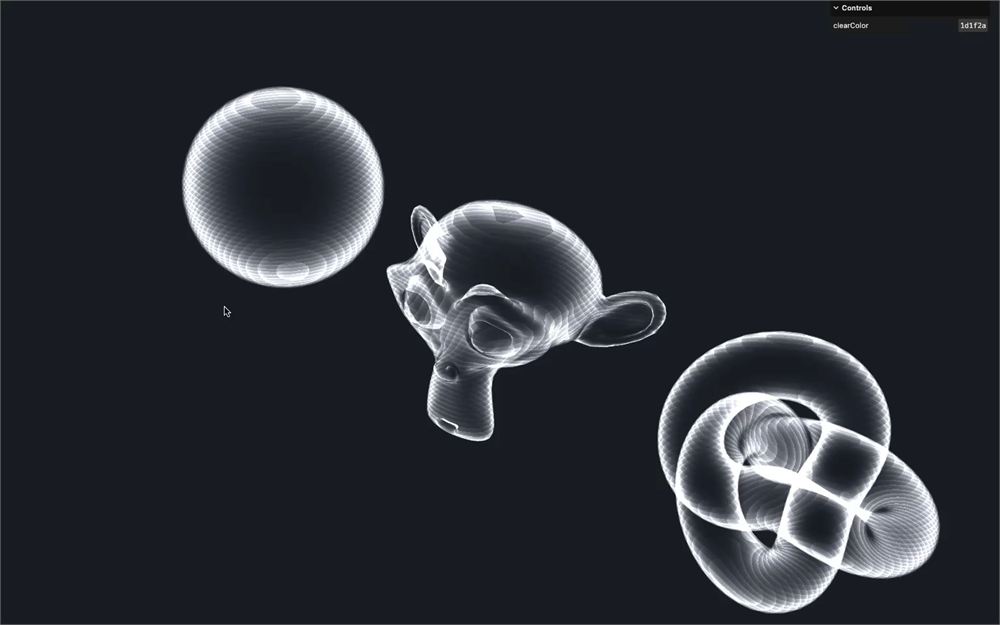
smoothstep 的 0.8 和 0.0 界限听起来可能奇怪,但这是因为我们已经对 fresnel 应用了一个 pow,也因为 AdditiveBlending 让边缘已经相当亮,因为我们看到两个面。
这就是那种你必须测试各种数字,直到对结果满意的情况。
颜色
让我们改变颜色。
这一次,我们要用一个 uniform 并让它可调节。
在 script.js 里,添加一个 uColor uniform,在 Uniform 实例里使用一个 Color 实例,并把颜色设为 'red':
const material = new THREE.ShaderMaterial({
    // ...
    uniforms:
    {
        // ...
        uColor: new THREE.Uniform(new THREE.Color('red'))
    },
    // ...
})
小心,嵌套这么多实例时很容易犯错。
在 fragment.glsl 里,取回 uColor uniform,并把它设置到 gl_FragColor 的前三个值上:
uniform vec3 uColor;
// ...

void main()
{
    // ...
    gl_FragColor = vec4(uColor, holographic);
    // ...
}
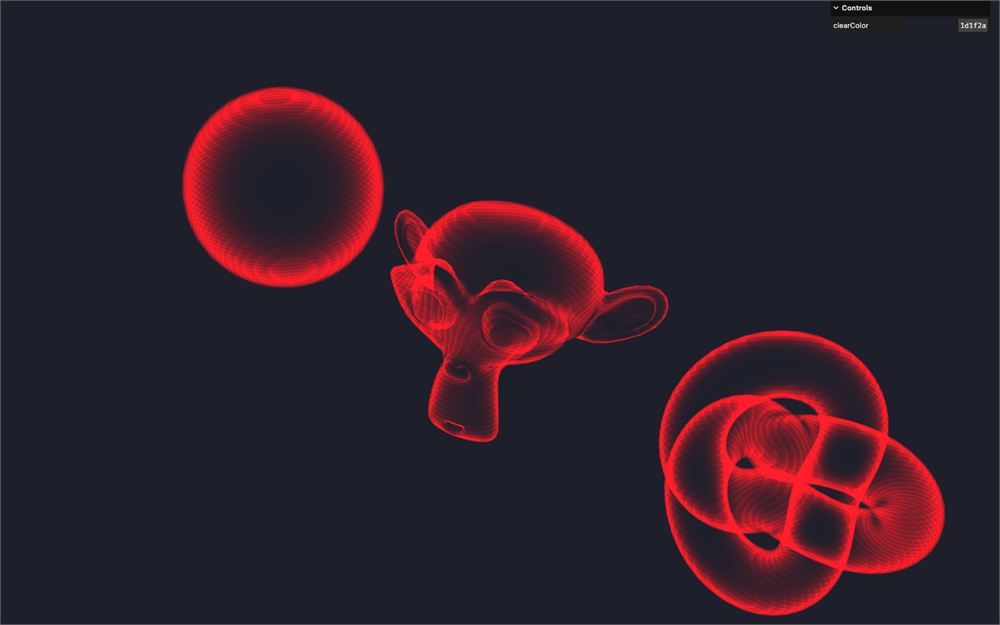
在 script.js 里,我们想调节那个颜色。
直接调节 Color 会导致色彩空间问题。我们需要像前面课程里那样创建一个“dummy”对象。
在材质之前,创建一个 materialParameters 对象,其 color 属性设为 '#70c1ff':
/**
 * Material
 */
const materialParameters = {}
materialParameters.color = '#70c1ff'

const material = new THREE.ShaderMaterial({
    // ...
})
现在用 gui 上的 addColor() 函数创建相应的调节项:
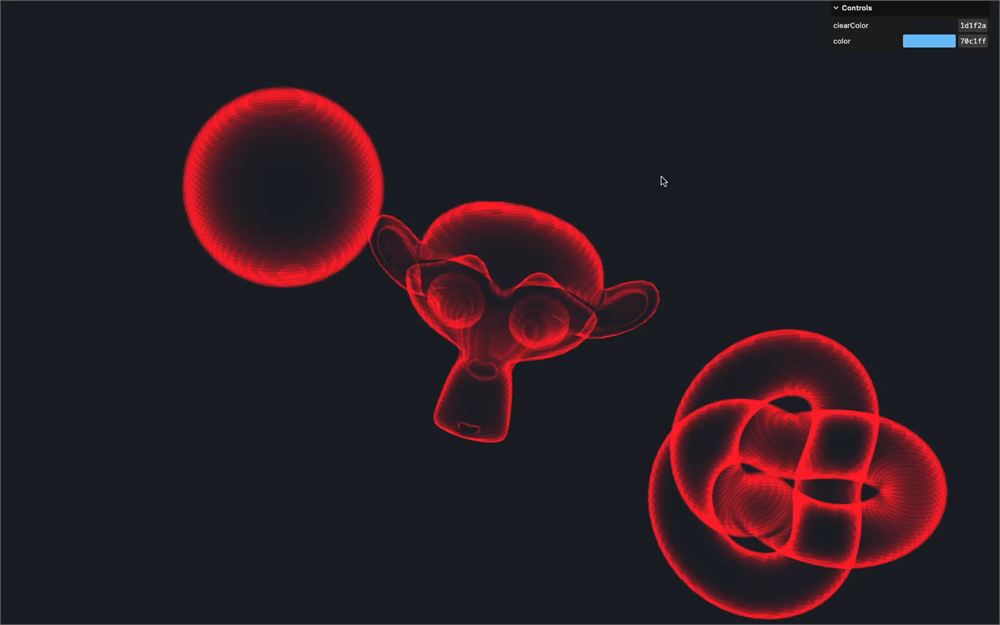
gui.addColor(materialParameters, 'color')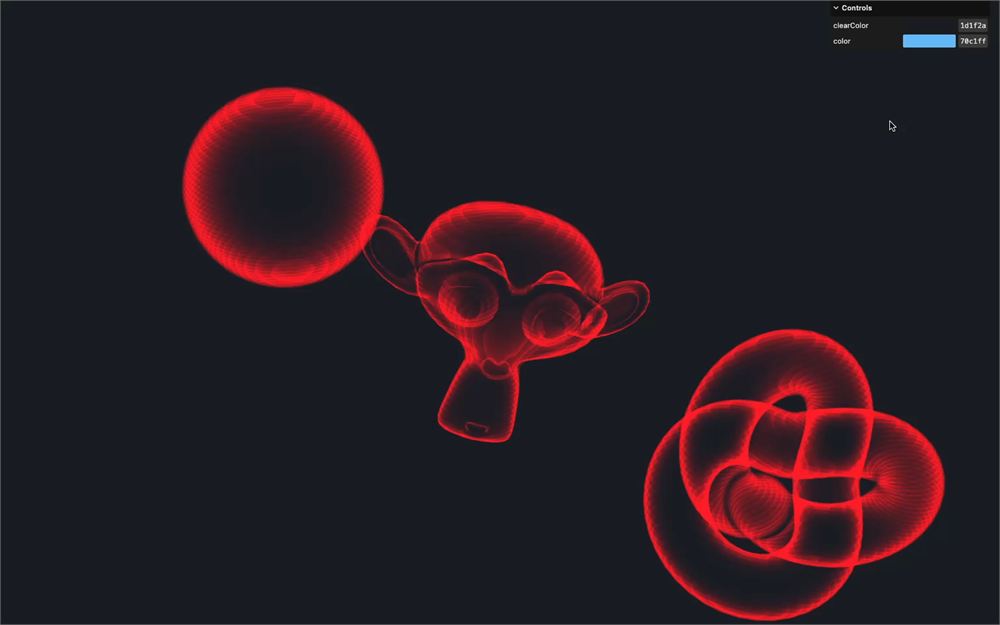
首先,在 addColor() 末尾链式调用一个 onChange(),给它传一个函数。接着,在那个函数里更新 uColor uniform:
gui
    .addColor(materialParameters, 'color')
    .onChange(() =>
    {
        material.uniforms.uColor.value.set(materialParameters.color)
    })
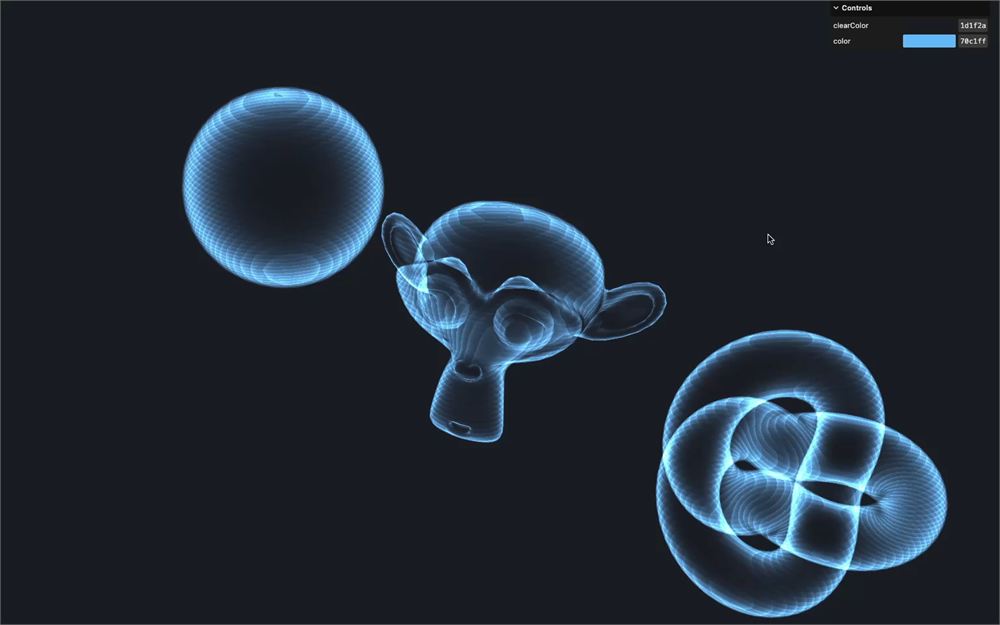
把 materialParameters.color 传给 uColor uniform 的初始颜色,而不是 'red':
const material = new THREE.ShaderMaterial({
    // ...
    uniforms:
    {
        uColor: new THREE.Uniform(new THREE.Color(materialParameters.color)),
        // ...
    },
    // ...
})
毛刺效果
fragment shader 我们做完了。
现在我们要创建那个毛刺效果,就好像全息透镜或什么技术组件被损坏了,导致图像跳了一下。
基础效果
首先,我们要让所有顶点都毛刺,然后让效果更零星。
首先,我们想让顶点在 x 和 z 轴上随机移动。但 GLSL 里的“随机”并不那么容易,我们需要找一些 hack 来生成随机值。这些 hack 在这篇 Book of Shaders 文章里解释得非常清楚,它里面也包含下面这个随机函数:
float random (vec2 st) {
    return fract(sin(dot(st.xy,
                         vec2(12.9898,78.233)))*
        43758.5453123);
}
我把那个函数改写成了这样:
float random2D(vec2 value)
{
    return fract(sin(dot(value.xy, vec2(12.9898,78.233))) * 43758.5453123);
}
主要思路是我们创建一个几乎无法预测的数字,并用 fract 提取小数部分。
注意在这个情况里我们用的是 2D 随机,意味着我们传入一个 vec2 作为输入,从 0.0 到 1.0 得到一个“随机”的 float。不过,还有其他类型的随机函数。
让我们在 vertex shader 的 main() 之前添加那个函数:
// ...

float random2D(vec2 value)
{
    return fract(sin(dot(value.xy, vec2(12.9898,78.233))) * 43758.5453123);
}

void main()
{
    // ...
}
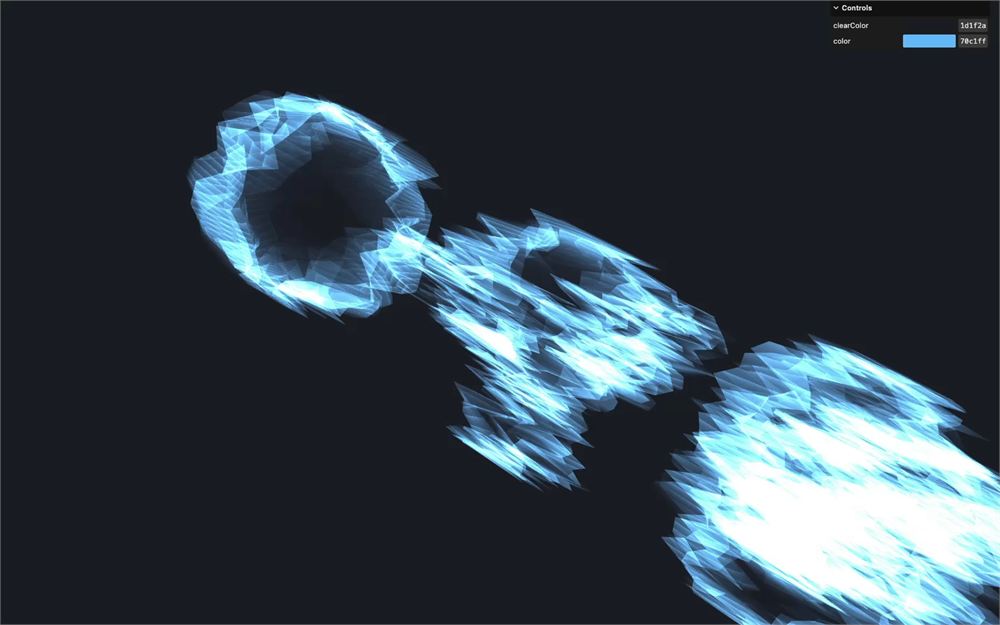
我们要更新 modelPosition,并从 x 开始。
用 modelPosition.xz 作为 random2D() 的参数,并把结果加到 modelPosition.x:
void main()
{
    // ...

    // Glitch
    modelPosition.x += random2D(modelPosition.xz);

    // Final position
    // ...
}
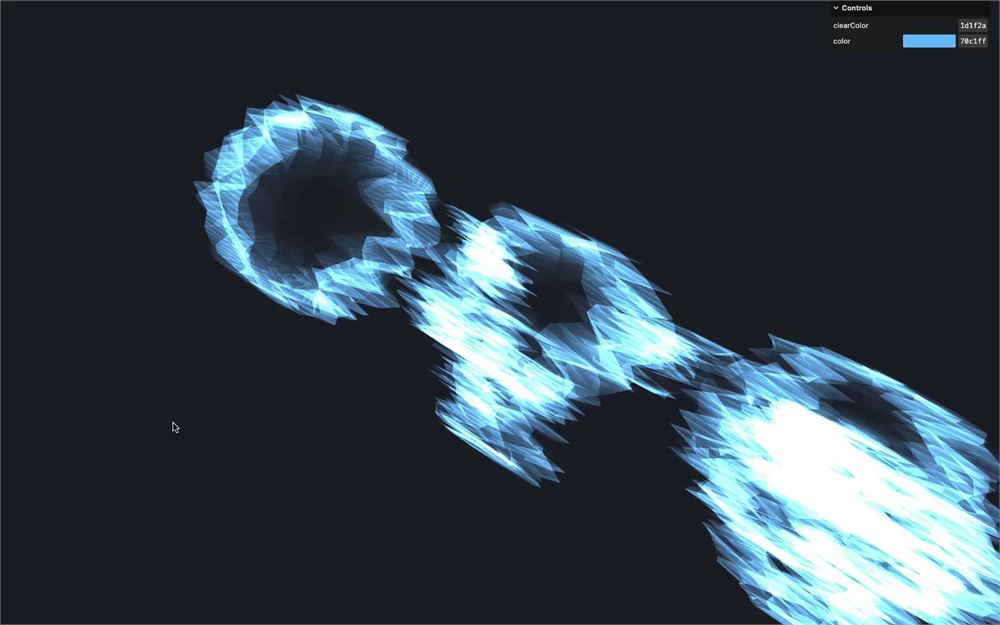
我们用 modelPosition.xz 作为输入,这样每个顶点能得到不同的偏移。然而,如果模型停止移动,毛刺会看起来是静止的。
注释掉物体旋转来看看:
const tick = () =>
{
    // ...

    // // Rotate objects
    // if(suzanne)
    // {
    //     suzanne.rotation.x = - elapsedTime * 0.1
    //     suzanne.rotation.y = elapsedTime * 0.2
    // }

    // sphere.rotation.x = - elapsedTime * 0.1
    // sphere.rotation.y = elapsedTime * 0.2

    // torusKnot.rotation.x = - elapsedTime * 0.1
    // torusKnot.rotation.y = elapsedTime * 0.2

    // ...
}
我们能做的修复,就是取回 uTime uniform,并把它加到 modelPosition.xz:
uniform float uTime;

// ...

void main()
{
    // ...
    modelPosition.x += random2D(modelPosition.xz + uTime);

    // ...
}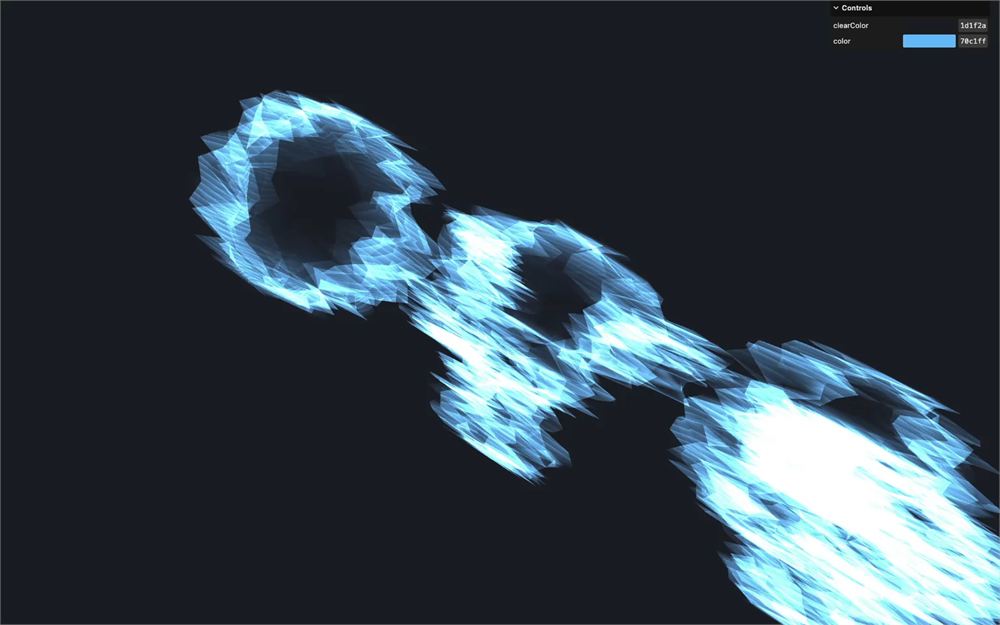
即使模型不移动,顶点也在毛刺。
取消注释物体旋转:
const tick = () =>
{
    // ...

    // Rotate objects
    if(suzanne)
    {
        suzanne.rotation.x = - elapsedTime * 0.1
        suzanne.rotation.y = elapsedTime * 0.2
    }

    sphere.rotation.x = - elapsedTime * 0.1
    sphere.rotation.y = elapsedTime * 0.2

    torusKnot.rotation.x = - elapsedTime * 0.1
    torusKnot.rotation.y = elapsedTime * 0.2

    // ...
}
我们现在可以对 modelPosition.z 做同样的事,并用 modelPosition.zx 作为输入,以获得不同的结果:
uniform float uTime;

// ...

void main()
{
    // ...
    modelPosition.x += random2D(modelPosition.xz + uTime);
    modelPosition.z += random2D(modelPosition.zx + uTime);

    // ...
}
你可能注意到了,物体虽然非常模糊,但不再位于初始位置:
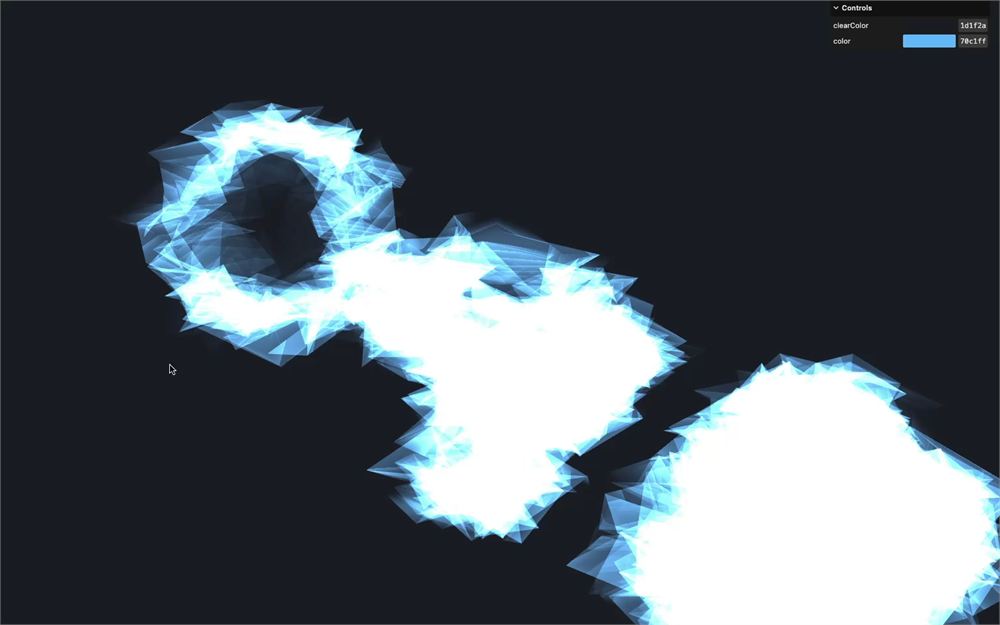
这是因为 random2D() 返回一个从 0.0 到 1.0 的值,使它只有正值,导致顶点都朝同一个大致方向移动。
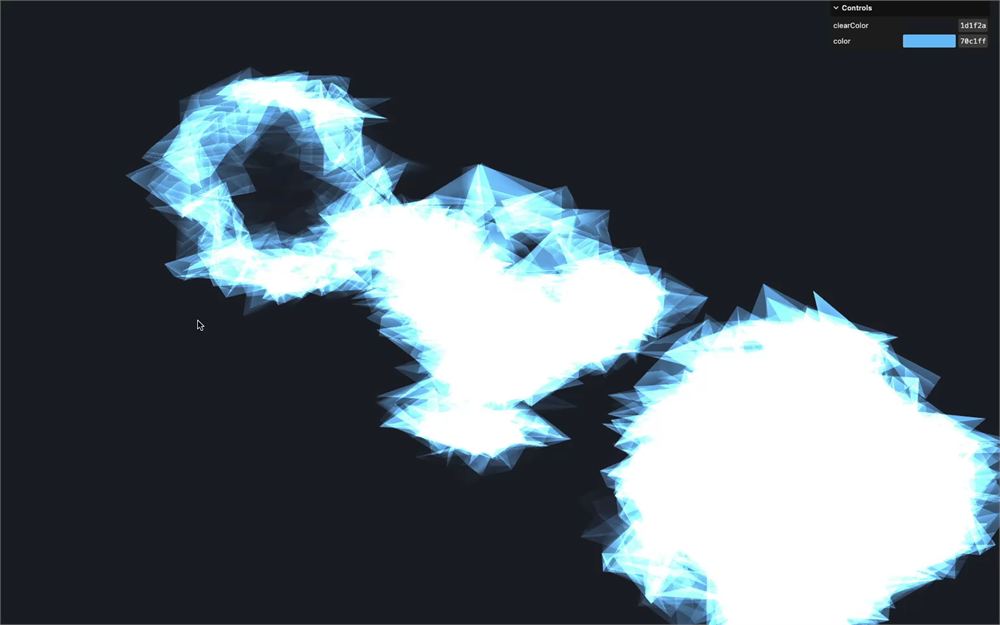
我们可以从两个 random2D() 里各减去 0.5 来修复。这样,值就从 -0.5 到 +0.5:
uniform float uTime;

// ...

void main()
{
    // ...
    modelPosition.x += random2D(modelPosition.xz + uTime) - 0.5;
    modelPosition.z += random2D(modelPosition.zx + uTime) - 0.5;

    // ...
}
时间和空间上的变化
我们现在想让那个效果看起来像从底部到顶部的波浪,零星地出现。
要做到这一点,我们要创建一个 glitchStrength 变量,并把 sin 函数的结果赋值给它,以 uTime 作为输入。
void main()
{
    // ...
    float glitchStrength = sin(uTime);
    modelPosition.x += random2D(modelPosition.xz + uTime) - 0.5;
    modelPosition.z += random2D(modelPosition.zx + uTime) - 0.5;

    // ...
}
我们现在把 x 和 z 乘以 glitchStrength:
void main()
{
    // ...
    float glitchStrength = sin(uTime);
    modelPosition.x += (random2D(modelPosition.xz + uTime) - 0.5) * glitchStrength;
    modelPosition.z += (random2D(modelPosition.zx + uTime) - 0.5) * glitchStrength;

    // ...
}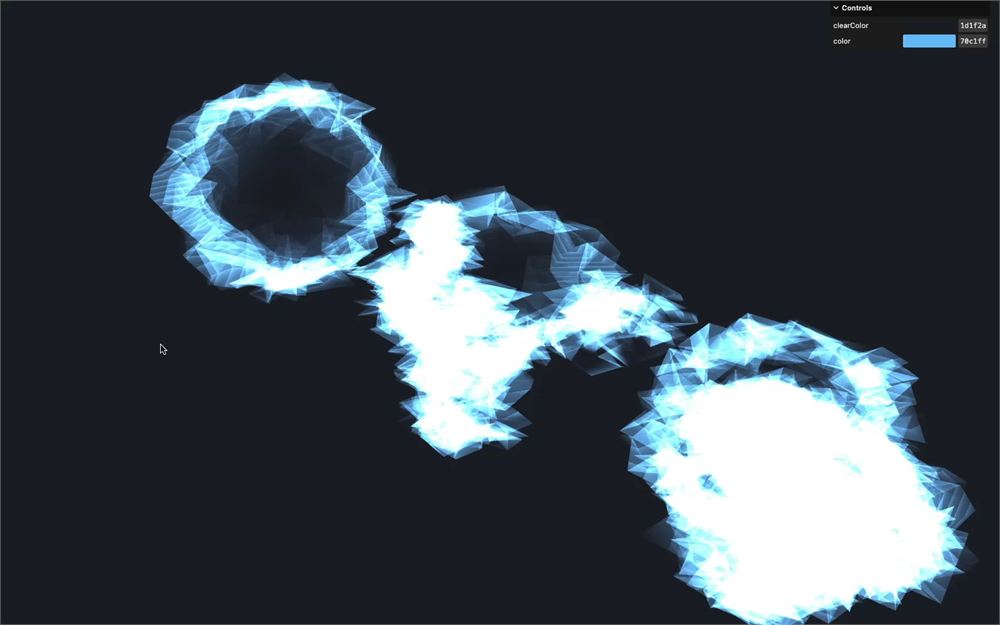
现在由于 sin(),整个效果在来回应用。
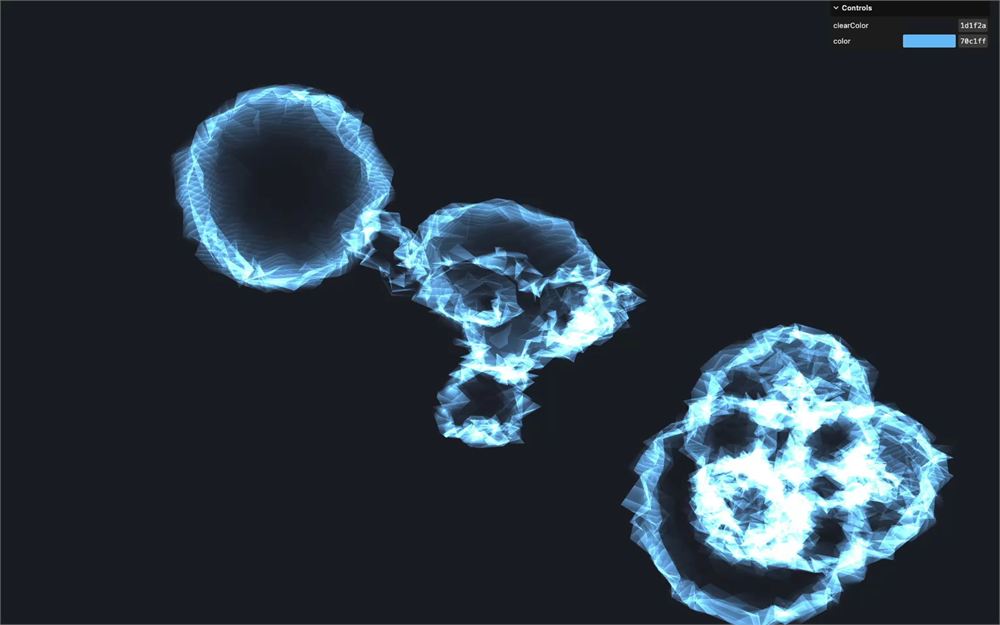
让我们通过把 glitchStrength 乘以 0.25 来减弱效果:
void main()
{
    // ...
    float glitchStrength = sin(uTime);
    glitchStrength *= 0.25;

    // ...
}
现在,为了让效果从底部移动到顶部,我们要从 uTime 里减去 modelPosition.y:
void main()
{
    // ...
    float glitchStrength = sin(uTime - modelPosition.y);

    // ...
}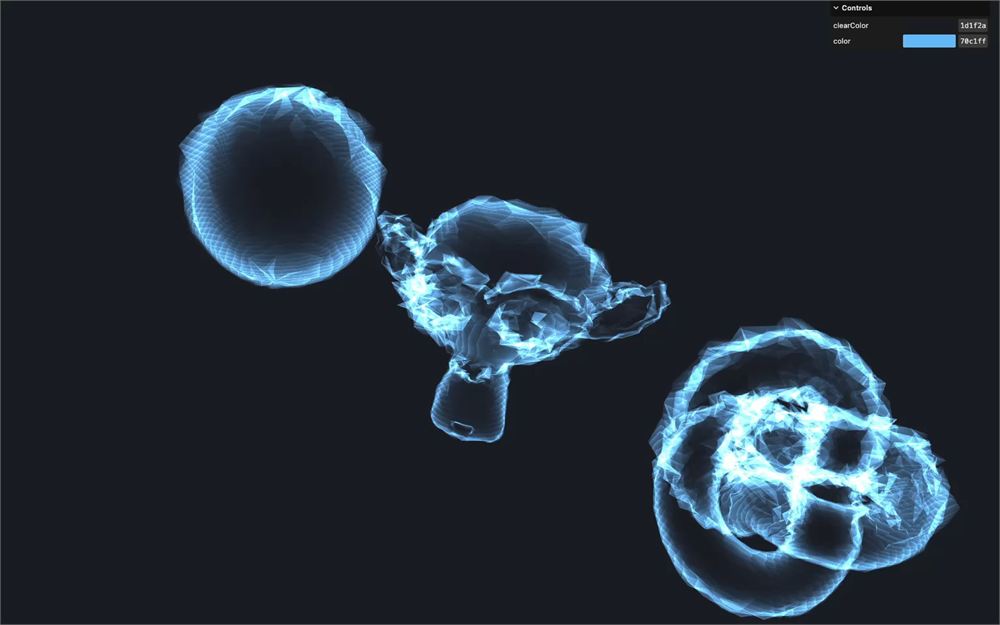
效果相同,但根据 modelPosition.y 在时间上做了偏移。
因为我们用的是 sin(),值像波浪一样从 -1 到 +1,使它大部分时间都处于激活状态:
我们想让效果出现得不那么频繁,需要重映射它。我们要用常用的 smoothstep:
对 glitchStrength 应用一个以 0.3 和 1.0 为界限的 smoothstep:
void main()
{
    // ...
    float glitchStrength = sin(uTime - modelPosition.y);
    glitchStrength = smoothstep(0.3, 1.0, glitchStrength);
    glitchStrength *= 0.25;
    // ...
}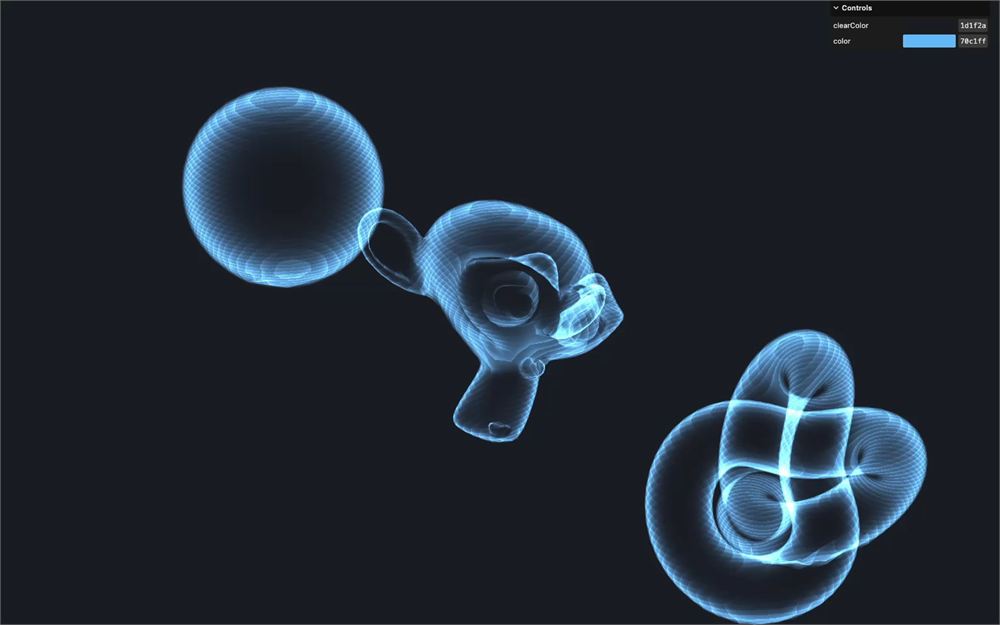
只有当值从 0.3 到 1.0 时才应用效果,这少得多了。
我们现在需要通过组合多个不同频率的 sin() 来增加更多随机性。
首先,我们要把 uTime - modelPosition.y 放进一个 glitchTime 变量里,这样就不用重复公式多次:
void main()
{
    // ...
    float glitchTime = uTime - modelPosition.y;
    float glitchStrength = sin(glitchTime);

    // ...
}
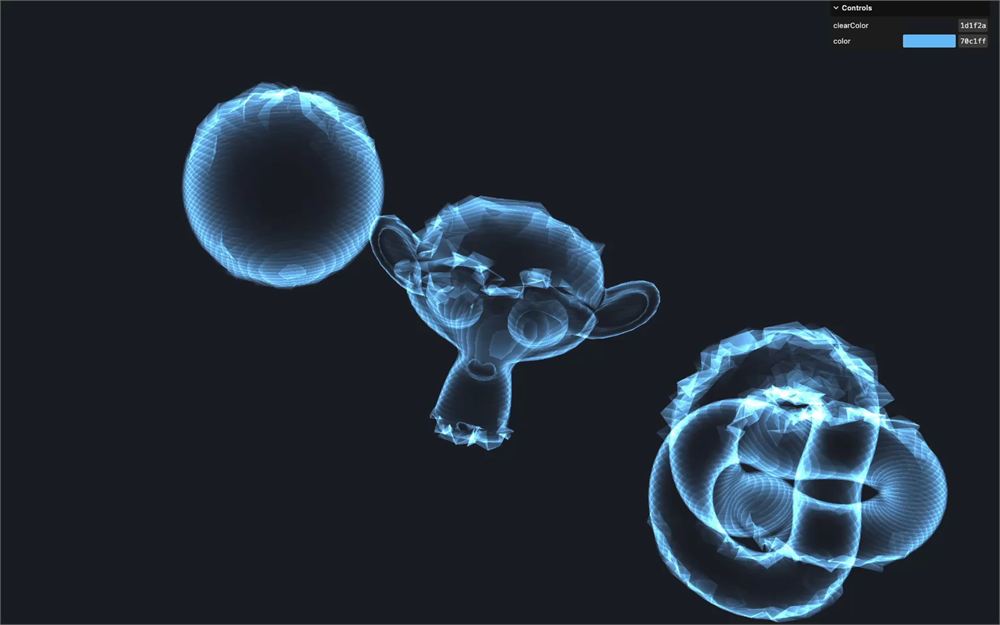
现在,我们要把多个不同频率的 sin() 组合在一起:
把 3 个 sin() 以随机频率相加。第二个 sin() 用 3.45,第三个 sin() 用 8.76,应该看起来足够随机:
void main()
{
    // ...
    float glitchTime = uTime - modelPosition.y;
    float glitchStrength = sin(glitchTime) + sin(glitchTime * 3.45) +  sin(glitchTime * 8.76);

    // ...
}
最后,把 sin() 的组合除以 3.0,使它仍然从 -1.0 到 +1.0:
void main()
{
    // ...
    float glitchStrength = sin(glitchTime) + sin(glitchTime * 2.34) +  sin(glitchTime * 5.67);
    glitchStrength /= 3.0;

    // ...
}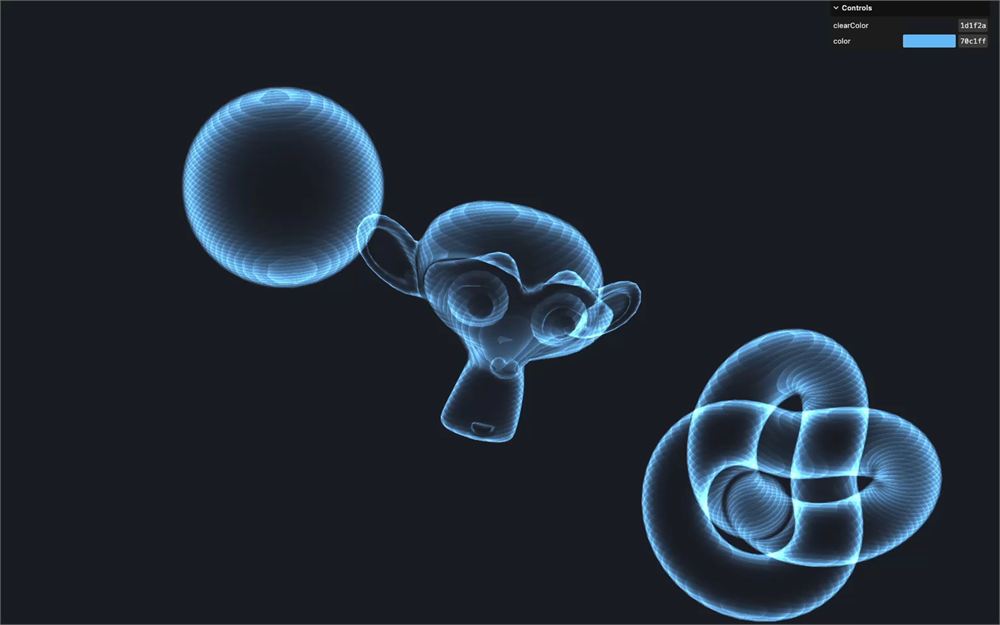
毛刺效果和全息材质我们就做完了。
分离 shader 代码块
就像之前一样,我们要把 random2D 函数移到单独的文件里并包含它。
在 src/shaders/ 里,创建一个 includes/ 文件夹。
在那个 src/shaders/includes/ 文件夹里,创建一个 random2D.glsl 文件,并把 random2D 函数放进去:
float random2D(vec2 value)
{
    return fract(sin(dot(value.xy, vec2(12.9898,78.233))) * 43758.5453123);
}
回到 vertex.glsl,用 #include 代替那个函数:
// ...

#include ../includes/random2D.glsl

void main()
{
    // ...
}
确保一切都已保存,项目应该像之前一样工作。
这不是强制性的,但被认为是好习惯,它让函数能轻松在其他 shader 里复用。
继续深入
和往常一样,随意继续深入。
这里有一些想法:
- 添加调节项来控制动画
- 添加调节项来控制图案
- 添加声音
- 添加场景,比如显示全息图的 R2D2
- 创建颜色变化,而不是单一颜色
Anderson Mancini 也做了一个漂亮的全息材质,如果你想要一些灵感